
- Alert routing — direct alert notifications to specific groups so the right people are informed.
- Visibility exclusions — keep a whole group out of a sensitive incident in one go, rather than naming each person.
Common examples
Here are some Staff Groups schools typically set up:Safeguarding Team
The DSL and Deputy DSLs responsible for managing safeguarding concerns.
Year Group Leads
Heads of year who need visibility of incidents involving students in their year group.
Senior Leadership Team
Senior leaders who need oversight of safeguarding activity across the school.
Creating a Staff Group
Creating and managing Staff Groups requires Deputy DSL or above, or the School Admin role.
1
Open Staff Group settings
Navigate to Settings and select Staff Groups from the sidebar.
2
Click Add Group
Select the Add Group button in the top-right corner.
3
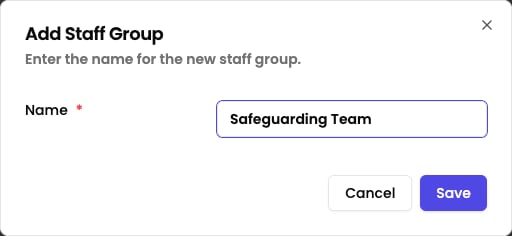
Name the group
Enter a clear, descriptive name for the group (for example, “Pastoral Team” or “Year 7 Leads”).
4
Save
Click Save to create the group.
Adding and removing members
Once you have created a Staff Group, you can manage who belongs to it:1
Open the group
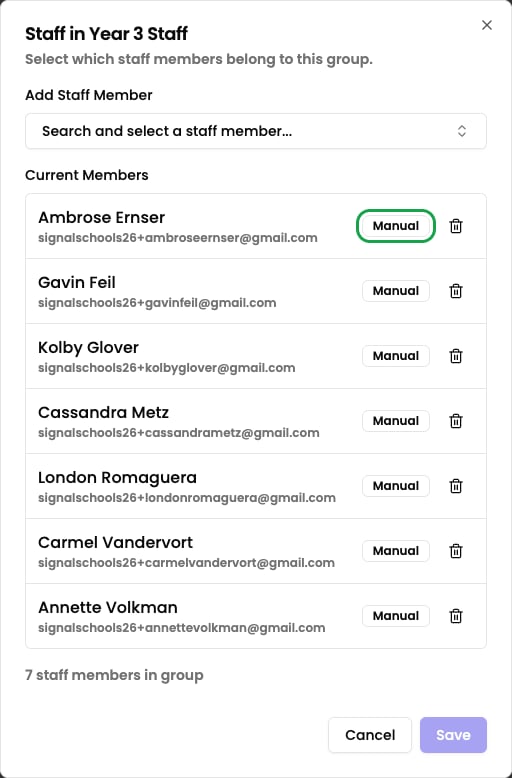
On the Staff Groups settings page, click the Manage staff members icon next to the group you want to edit.
2
Add a member
Use the search box to find a staff member by name. Selecting them from the list stages them as a pending addition — they are only added to the group when you save.
3
Remove a member
Click the remove button next to any member in the list to remove them from the group.
4
Save changes
Click Save to apply your changes.
Archiving a Staff Group
Archiving a group hides it from active lists without permanently removing it. This is useful when a group is no longer in use but you want to keep it available to restore later.1
Open Staff Group settings
Navigate to Settings → Staff Groups.
2
Archive the group
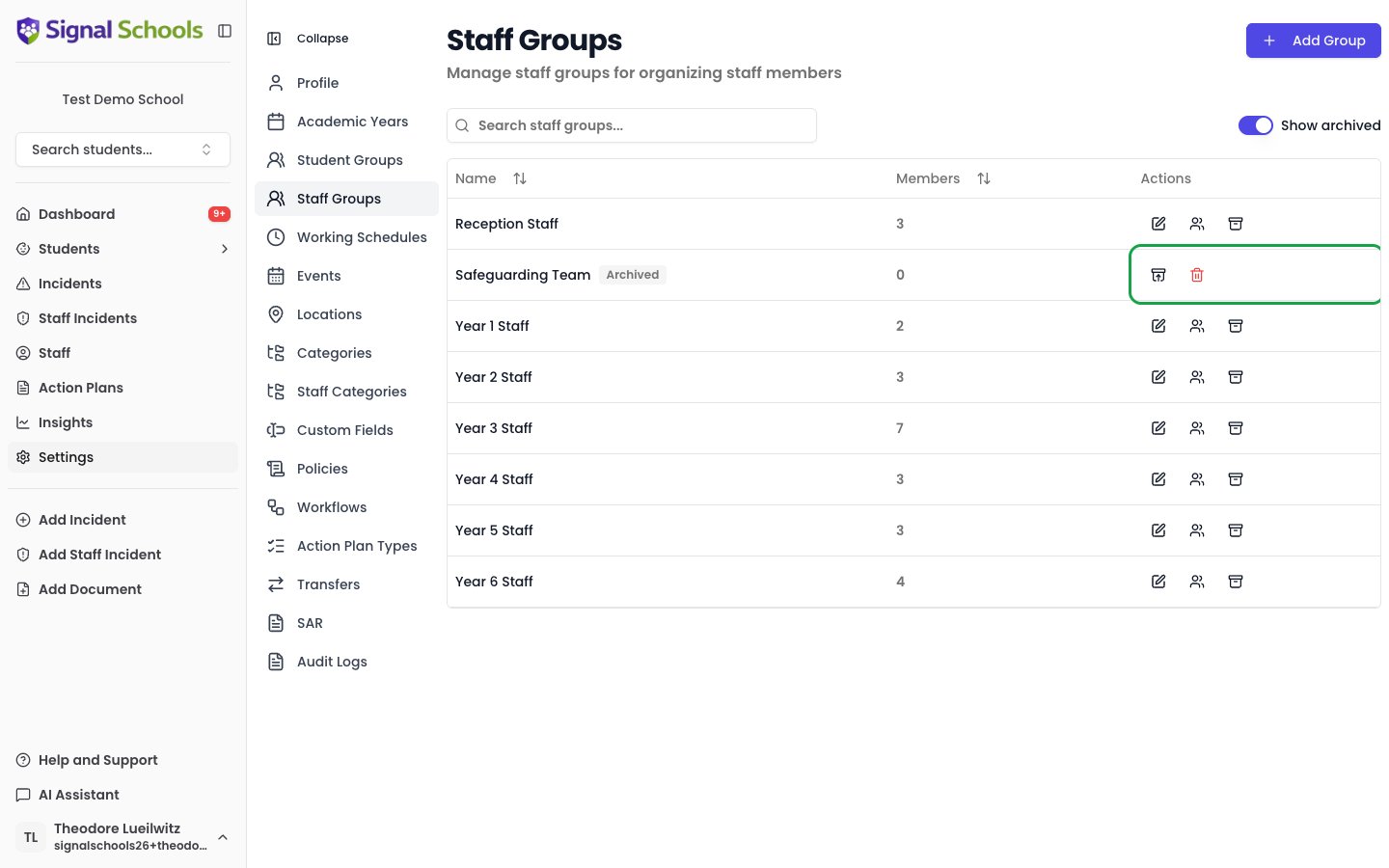
Click the Archive icon next to the group you want to archive.
3
Confirm
Confirm the action in the prompt. The group will no longer appear in active lists.
Permanently deleting a Staff Group
A group must be archived before it can be permanently deleted.1
Archive the group
Follow the steps above to archive the group first.
2
Show archived groups
Enable the Show archived toggle to make the archived group visible.
3
Delete the group
Click the Delete icon next to the archived group and confirm.
MIS-synced Staff Groups
Some Staff Groups may be synced from your MIS and are marked with a sync indicator. Their memberships are managed automatically by Signal and cannot be changed manually. Any changes to synced group memberships should be made in your MIS, and Signal will reflect them at the next sync.
Using Staff Groups for alert routing
Staff Groups are particularly powerful when combined with workflows. When you create a workflow, you can choose a Staff Group as the recipient for an Alert Users action. Every member of that group will receive the alert when a matching incident is logged. For example, you might create a rule that says:“Alert the Pastoral Team whenever a student incident is logged in the Attendance category.”This ensures the right people are notified without you having to select individuals one by one. If someone joins or leaves the group, the alert routing updates automatically.
Groups named after a class or year group
Signal can alert the class staff for whichever class a student is in, without you naming the group on the workflow. This lets a single workflow cover every class in the school. For this to work, each class needs a Staff Group named after it, with Staff on the end:
The name must match exactly. If you connect your MIS, these groups are usually created for you. Otherwise, create them here and add the relevant teachers.
See Alerts for how to switch this on.
Using Staff Groups to limit visibility
Staff Groups can also be used to keep people out of a sensitive record. When you set visibility exclusions on an incident, you can exclude a whole Staff Group in one go rather than naming each person. Exclusions work as a deny list: everyone who would normally see the incident still sees it, except the staff and Staff Groups you exclude. There is no way to limit a record to one group only — to lock a case down tightly, mark it DSL only, which hides it from everyone except DSLs, Deputy DSLs, and Owners.Keeping an individual member of staff away from a particular child is a different tool — see student restrictions, which are set per staff member, per child.
Related pages
Roles & Permissions
Understand the role system that works alongside Staff Groups.
Workflows
Set up workflows that route alerts to Staff Groups.
Managing Staff Members
Add, edit, and remove staff in your school.