
Any member of staff can record a staff incident — the Add Staff Incident button is available to everyone. Viewing, editing, and managing staff incidents requires Deputy DSL or above.
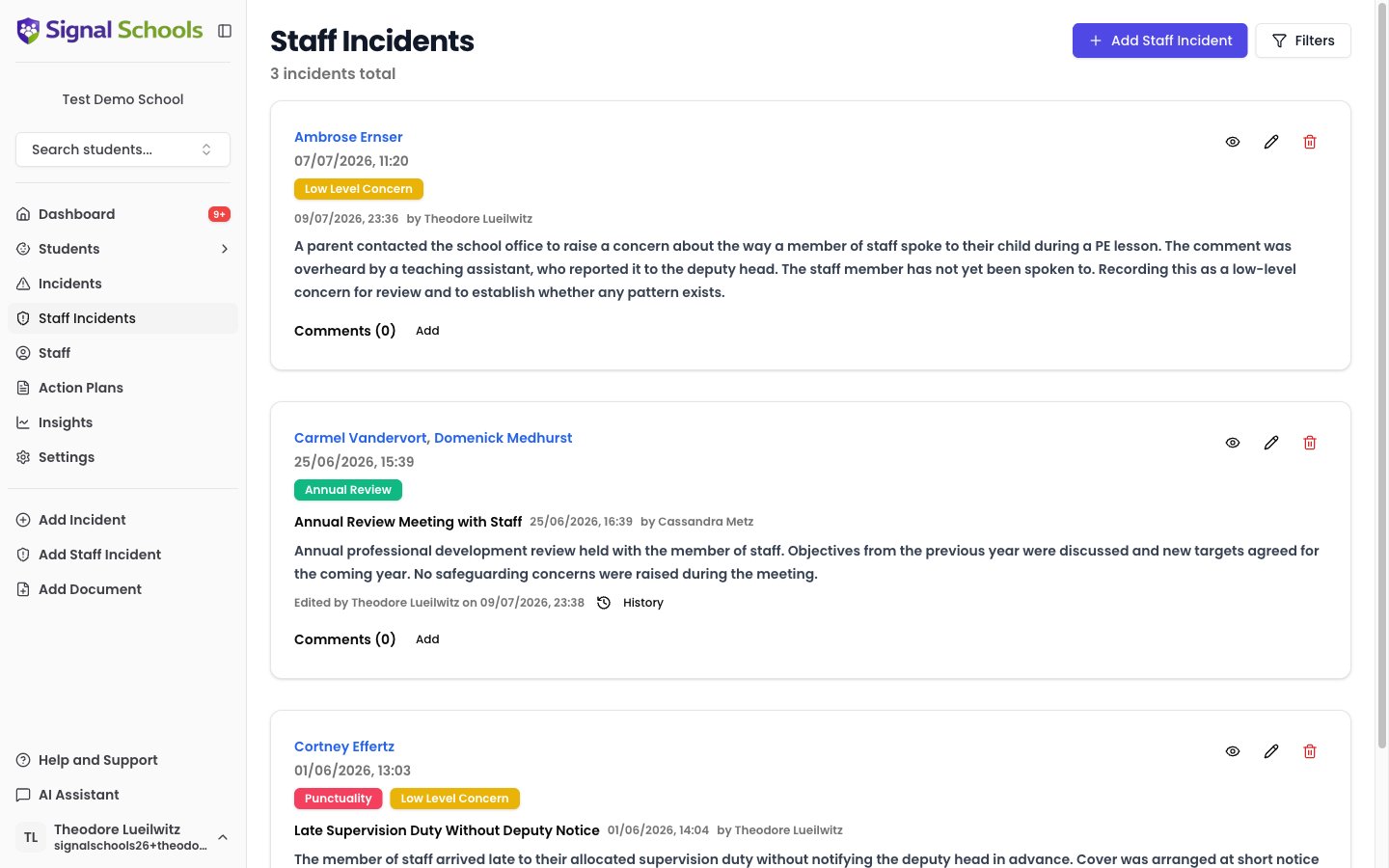
Why staff incidents are separate
Concerns involving staff — whether conduct issues, allegations, or performance-related safeguarding matters — require a different level of confidentiality than student incidents. Anyone can raise one, so that no member of staff is ever blocked from reporting a concern about a colleague. But only safeguarding leads can read them, protecting both the individuals involved and the integrity of any investigation.Key features
Restricted Access
Anyone can record a staff incident, but only staff with Deputy DSL or above can view or manage them. Everyone else — including School Admins — cannot see staff incidents at all, including ones they reported themselves.
Self-Exclusion
If you are named in a staff incident, you are automatically prevented from viewing it — even if you have the DSL role. This ensures no one can access records about themselves.
Main Staff & Linked Staff
Each incident identifies the primary staff member involved (main staff) plus any additional linked staff. This distinction helps clarify who the concern is primarily about.
Linked Students
Students connected to a staff concern can be linked to the incident, creating a clear record of all individuals involved.
Staff incident categories
Staff incidents use their own set of categories, configured separately from student incident categories. This allows you to tailor the category list to the types of concerns that arise with staff — such as conduct, allegations, performance, or professional boundaries. For more on configuring categories, see Staff Incident Categories.How self-exclusion works
Self-exclusion is an automatic safeguard built into Signal. If your name appears as a main staff member or linked staff member on a staff incident, that incident is hidden from you completely. You will not see it in the staff incident list, and you cannot access it by any means. This applies regardless of your role. Even if you are an Owner, DSL, or Deputy DSL, you cannot view incidents that name you. This protects the confidentiality of concerns and ensures a fair process for everyone involved.Self-exclusion cannot be overridden. If you need to access an incident you are named in, another Owner, DSL, or Deputy DSL at your school must handle it.
Next steps
Recording & Managing
Learn how to create, view, edit, and comment on staff incidents.
Staff Categories
Set up and manage the categories used for staff incidents.