
Student groups organise children, and do not control who can see what. To limit which staff can see a record, use incident visibility or student restrictions instead.
Types of groups
You can create any groups that make sense for your school. Common examples include:Vulnerability Groups
Children in Care (CiC), Child Protection Plan, Child in Need, and other vulnerable cohorts.
Support Groups
SEN (Special Educational Needs), EAL (English as an Additional Language), FSM (Free School Meals), and Pupil Premium.
Cohort Groups
Year groups, houses, intervention groups, or any custom grouping your school needs.
Creating a group
1
Open student group settings
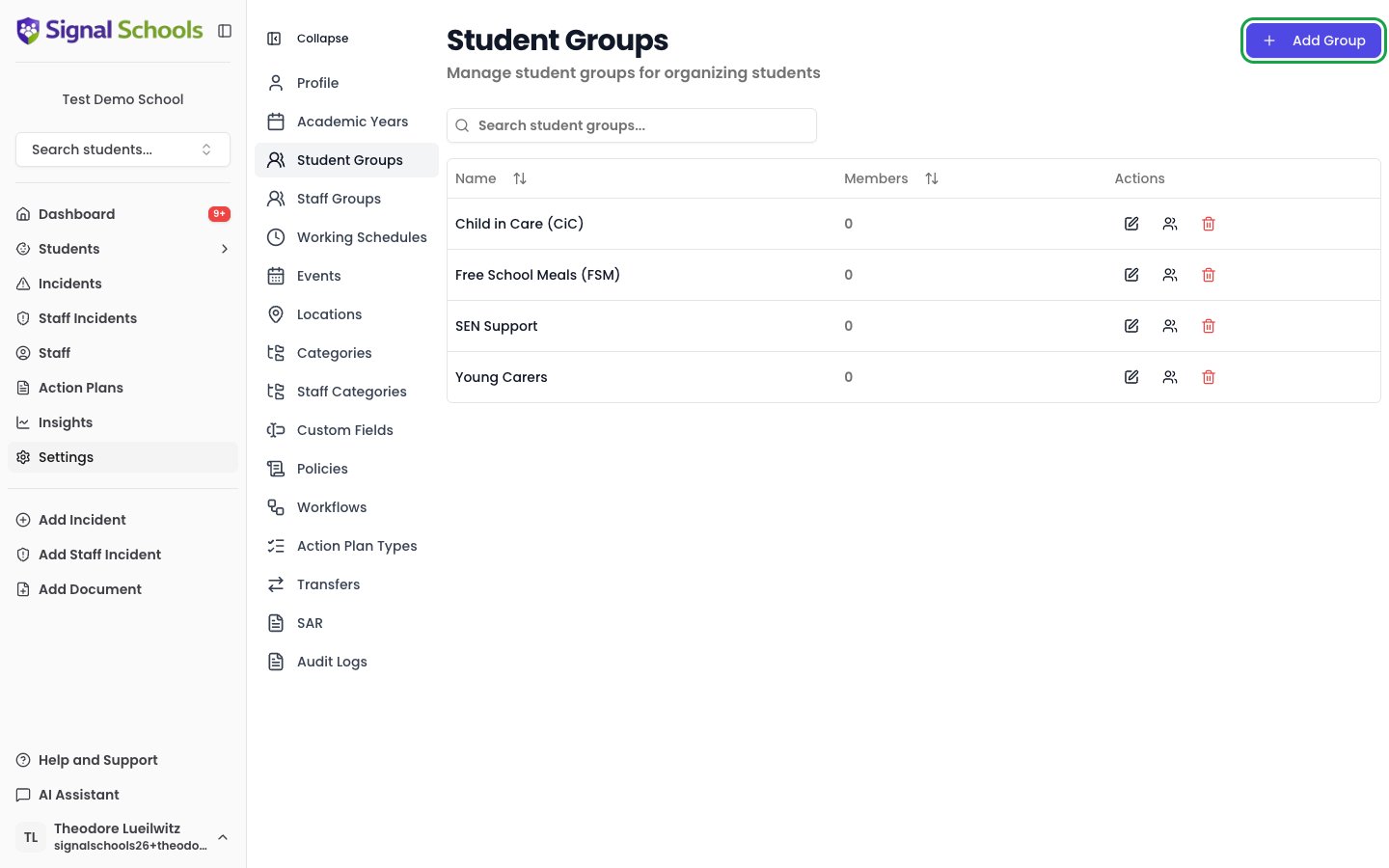
Navigate to Settings > Student Groups.
2
Click Add Group
Select the Add Group button.
3
Enter the group details
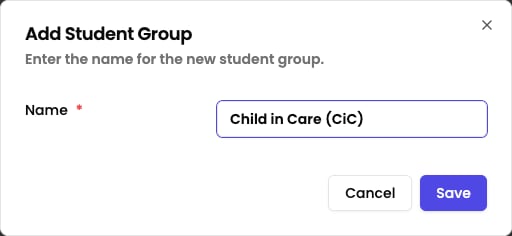
Give the group a name (for example, “Children in Care”) and an optional description to explain its purpose.
4
Save
Click Save to create the group.
Adding students to a group
Once a group exists, you can add students to it individually.1
Open student group settings
Navigate to Settings > Student Groups and find the group you want to manage in the list.
2
Open the manage students dialog
Click the Manage students icon button on the group’s row. A dialog opens with a student search.
3
Select students
Search for and select the students you want to include in the group.
4
Save
Click Save. The selected students are now members of the group.
Where groups are used
Student groups appear throughout Signal, making them a core organisational tool:- Alert rules — trigger alerts when an incident is logged for a student in a specific group. For example, alert all DSLs when an incident involves a Child in Care.
- Insights filtering — filter charts and reports by group to analyse safeguarding trends for specific cohorts.
- Reporting — include group membership in exported data for governor reports, Ofsted inspections, or local authority returns.
- Workflow criteria — target a workflow at a cohort, so the right staff are alerted when an incident involves a student in that group.
Managing group membership over time
As your school changes throughout the year, you may need to update group membership.Adding and removing students
Adding and removing students
You can add or remove students from a group at any time by opening the group and editing its membership. Changes take effect immediately.
Removing a group you no longer need
Removing a group you no longer need
If a group is no longer relevant — a time-limited intervention group, say — you can delete it from the Student Groups settings page. The students themselves are untouched, and incidents recorded while they were members are not affected.