
Before you begin
Make sure the following are in place:- Your school has been set up in Signal (at minimum, incident categories have been configured).
- You have an account with at least the Contributor role.
- You are logged in.
Recording an incident
1
Start a new incident
Click Add Incident from the sidebar navigation or from the dashboard. This opens the incident form.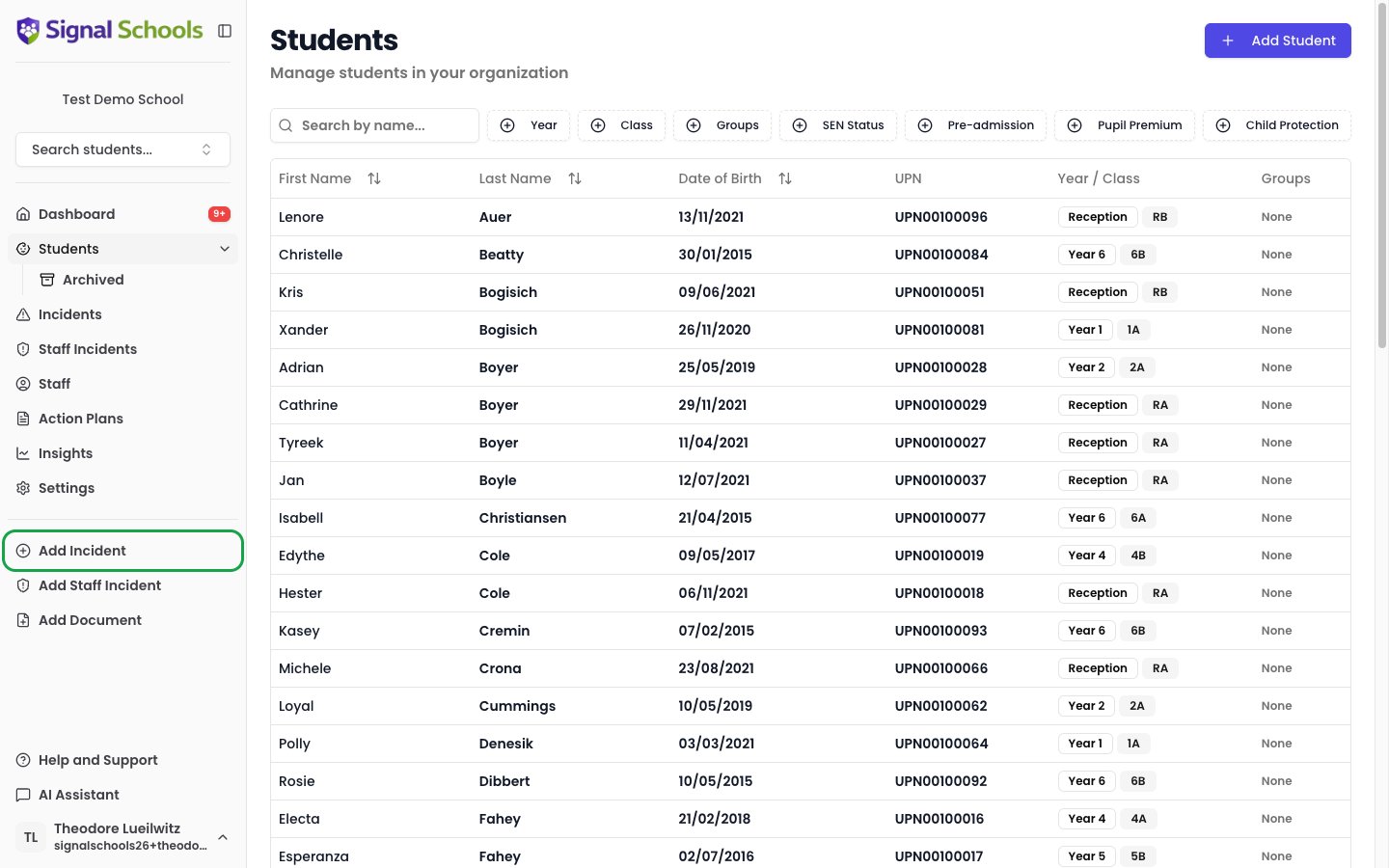
2
Select the student
Search for and select the student the concern is about. Start typing their name and choose from the results.If additional students are involved (for example, siblings or witnesses), you can link them to the incident as well.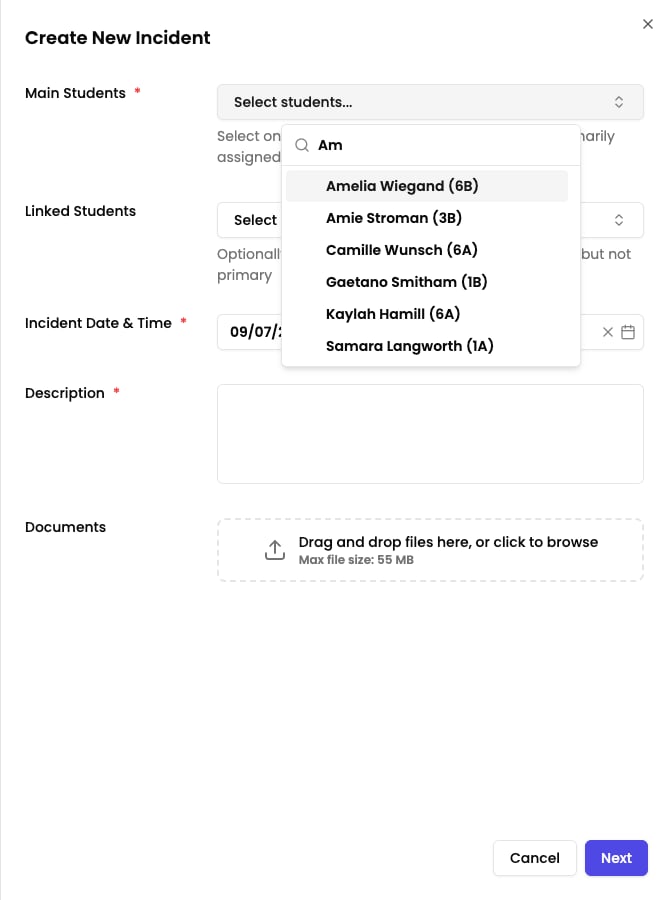
3
Set the date and time
Enter the date and time the concern arose. This defaults to the current date and time, but you can change it if you are recording something that happened earlier.
4
Write your description
Describe what happened in your own words. Include what you saw, heard, or were told, and any relevant context. Be factual and specific.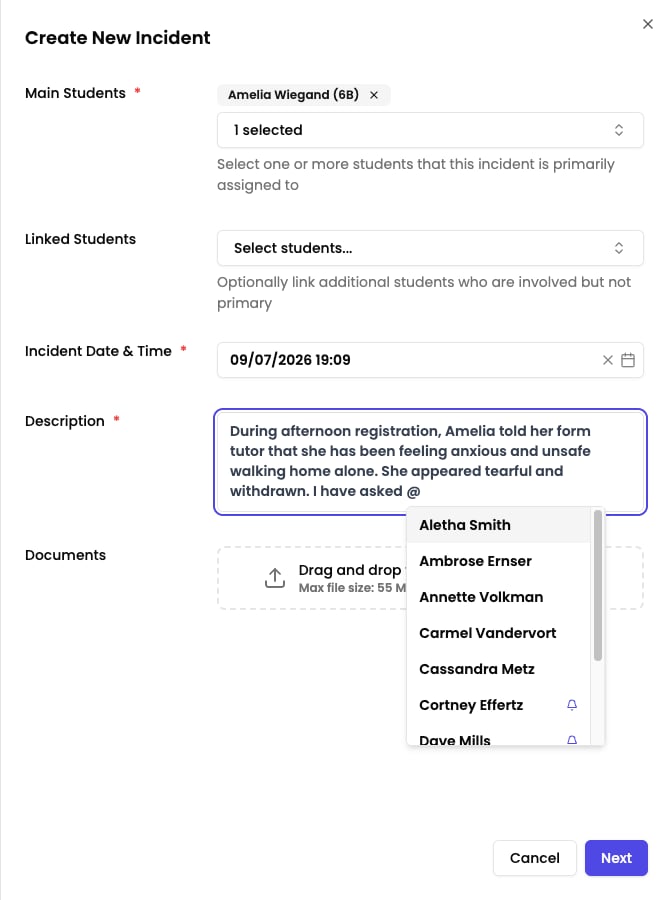
5
Attach documents (optional)
If you have supporting evidence — such as photos, letters, screenshots, or reports — use the Documents field to upload them to the incident.
6
Send for AI analysis
Click Next to save your description. Signal’s AI will analyse what you have written and suggest appropriate categories (such as Physical, Emotional, or Neglect) and any relevant events, including external agency involvement (such as Police or CAMHS).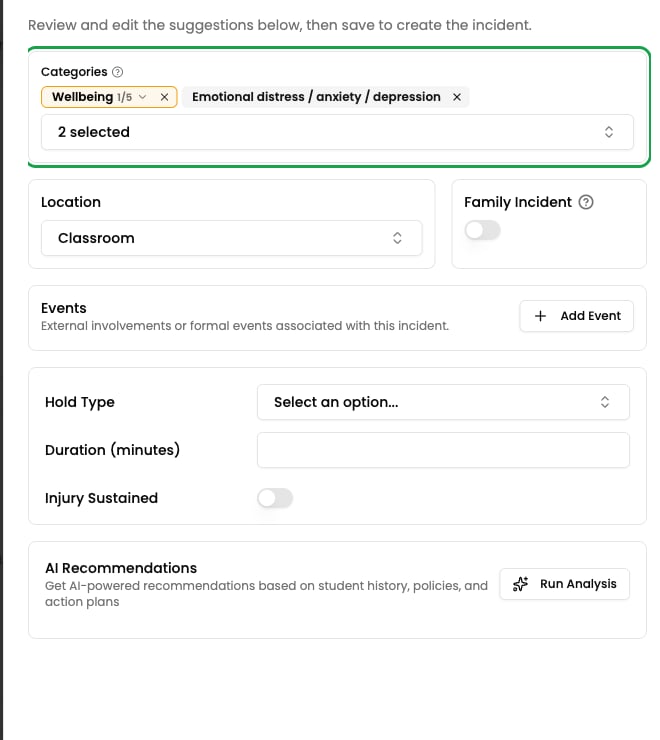
7
Review the AI suggestions
Look through the suggested categories and events. Select the ones that apply and deselect any that do not. You are always in control — AI suggestions are recommendations, not decisions.
8
Select the location
Signal’s AI suggests a location based on your description. Review the suggestion and adjust it if needed. You can also select a different location from your school’s list (for example, playground, classroom, or off-site).
9
Get suggested next steps (optional)
In the AI Recommendations panel, click Run Analysis if you would like Signal to draft suggested next steps for following the concern up. Edit or delete any suggestion you do not want — whatever you keep is saved as a comment on the incident.Nothing is generated until you click the button, so you can skip this entirely.
10
Save the incident
Click Save to finalise the incident. It is now recorded in Signal and visible to staff with the appropriate access.
What happens next
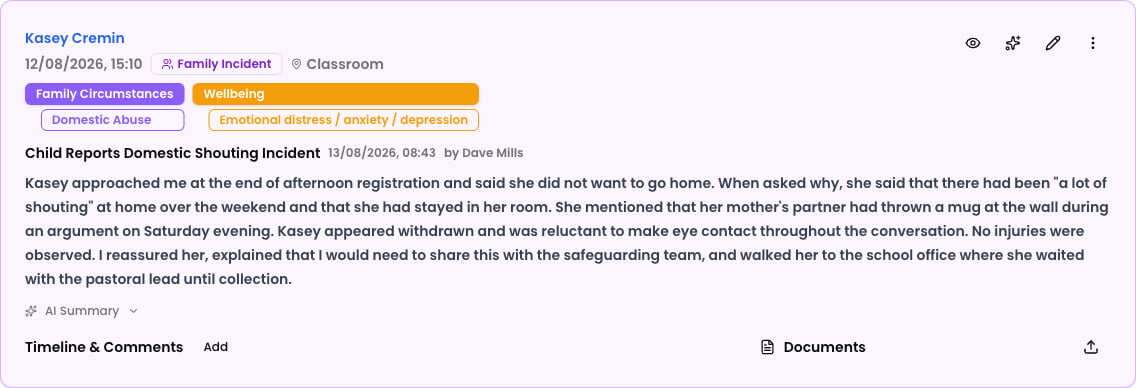
- Workflows are checked. If the incident matches any workflows your school has configured, the relevant staff are notified.
- It appears on dashboards. The incident shows up in the student’s timeline and on the dashboards of staff who need to see it.
- Policies are matched. Signal checks the incident against your school’s policies and attaches the relevant ones, so staff have the right guidance to hand.
- Collaboration begins. Other staff can add comments and @mentions to discuss the concern and coordinate a response.
If you are a DSL or Deputy DSL, you can also edit the incident later to add further details, update categories, or link additional students. See Managing incidents for more.
Next steps
Now that you have recorded your first incident, explore these related topics:Recording incidents in detail
Learn about all the fields and options available when creating incidents.
Comments and @mentions
Collaborate with colleagues by adding comments and tagging staff on incidents.
Email drafts
Find out how staff can report concerns by email, creating a private draft incident on their own dashboard to complete.
AI features
Discover how AI analyses incidents, generates summaries, and powers the AI Assistant.