
Guidance update alerts are visible to staff with the Owner, DSL, or Deputy DSL role. Contributors do not see them.
The guidance update banner
When guidance relevant to your school’s policies is updated, a banner appears at the top of the policies page (Settings → Policies), with one card per updated document.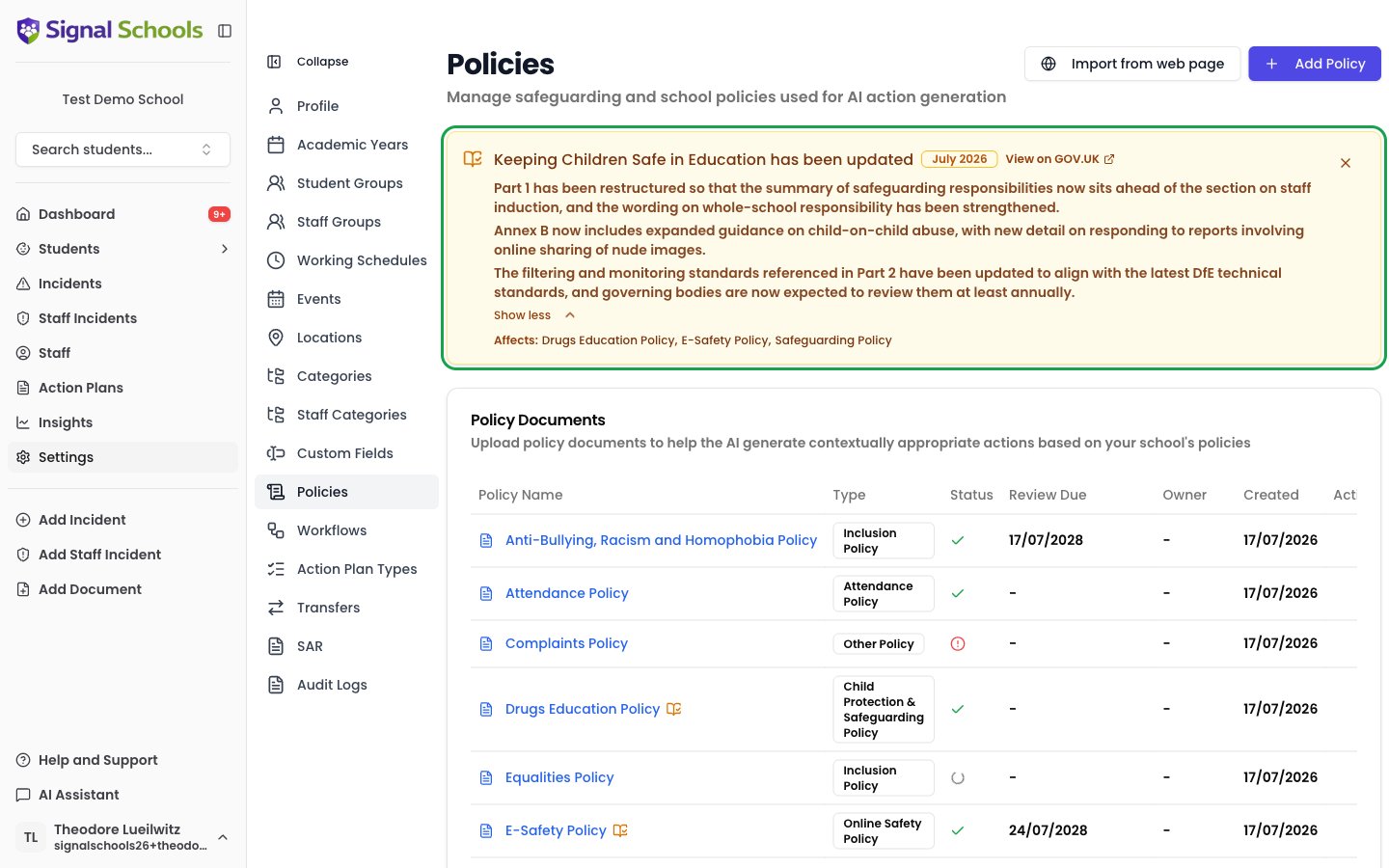
- The guidance document and edition — for example, Keeping Children Safe in Education, July 2026.
- View on GOV.UK — opens the official document so you can read it in full.
- What changed — a summary of the differences from the previous edition. Click to expand it.
- Affects — the policies at your school built on this guidance. Click any policy name to jump straight to it in the list below.
You only see guidance that applies to your school. Signal matches each guidance document to the policy types you actually hold, so a school with no attendance policy is not told about attendance guidance.
Reading what changed
The summary describes what is different in the new edition — restructured sections, expanded requirements, changed terminology — so you can judge whether your policy needs updating without reading the whole document. For a detailed check of your own wording against the new edition, run an AI policy review. It compares your policy line by line against the current guidance and reports gaps, outdated references, and suggested wording.Dismissing an alert
Once your school has considered a guidance change, you can dismiss its card so it stops appearing.1
Click the dismiss icon
Click the ✕ in the top-right corner of the guidance card.
2
Confirm
A confirmation appears explaining that this dismisses the alert for everyone at your school. Click Dismiss.
What dismissing does and does not do
Dismissing means “we have seen this change and considered it” — it stops Signal chasing you about it. It does not mean the policy has been reviewed, so the amber badge remains on the policy as a standing record that the guidance behind it has moved on. That badge clears only when you mark the policy as reviewed.
A policy that is genuinely due or overdue for review stays on the dashboard’s Policy Reviews Due card even after you dismiss a guidance alert. Dismissing guidance never silences a real review reminder.
When a newer edition is published
Dismissing applies to the edition you dismissed. If the government publishes another edition of the same document later, it appears as a fresh alert — so you are always told about genuinely new changes.Frequently asked questions
Can I undo a dismissal?
Can I undo a dismissal?
No. Dismissing is permanent and applies to the whole school, which is why Signal asks you to confirm. The guidance document itself is always available on GOV.UK, and you can run an AI policy review at any time to check a policy against the current edition.
Why does the amber badge stay on the policy after I dismiss?
Why does the amber badge stay on the policy after I dismiss?
The banner and the badge answer different questions. The banner tells you guidance has changed; the badge records that this policy is built on guidance that has since moved on. Dismissing acknowledges the news, but only reviewing the policy resolves the underlying position — so the badge stays until you mark it as reviewed.
Does dismissing affect other schools in our trust?
Does dismissing affect other schools in our trust?
No. Dismissal applies only to your school. Each school decides for itself when it has considered a guidance change.