
Sending a plan and recording a signature require you to be able to manage the plan: you are in the pupil’s class team, or you are an Owner, DSL or Deputy DSL. Anyone who can read the plan can see who it was sent to and download it.
What parents see
Parents see the plan as it is now: the pupil’s details and attainment, any EHCP outcomes, the plan sections, pupil and parent views, the current cycle’s targets grouped by area of need, and every review so far. It is the same content as the PDF, and they can download the PDF from the page.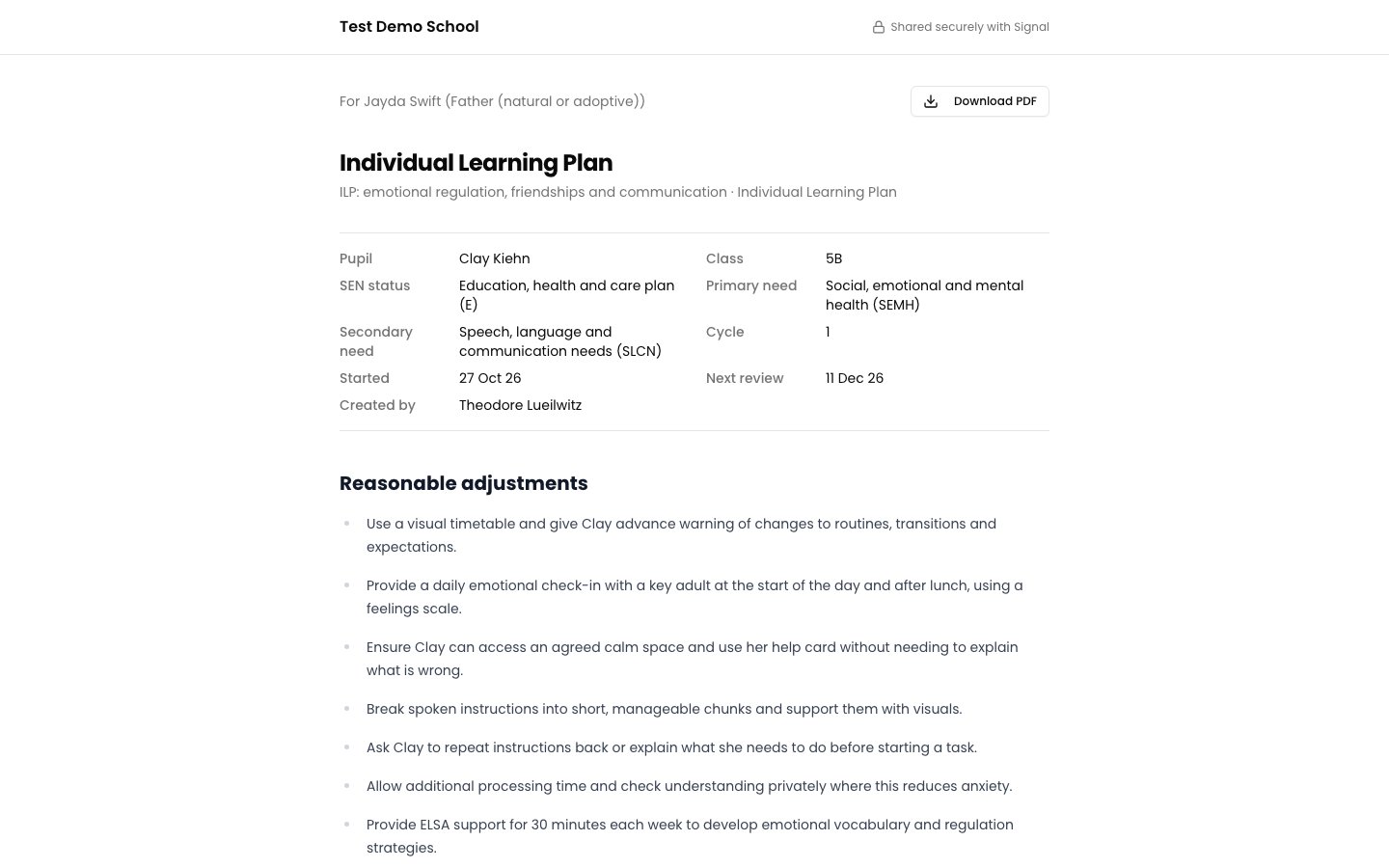
Parents never see the incidents linked to a plan. Incidents can name other children, so they stay in Signal.
Send the plan to parents
1
Open the plan
Open the plan and click Share with parents at the top of the page, or Send to parents on the Parent signatures card.
2
Choose who to send it to
Signal lists the pupil’s contacts. Parents and legal guardians with an email address are ticked to start with. Tick or untick as needed.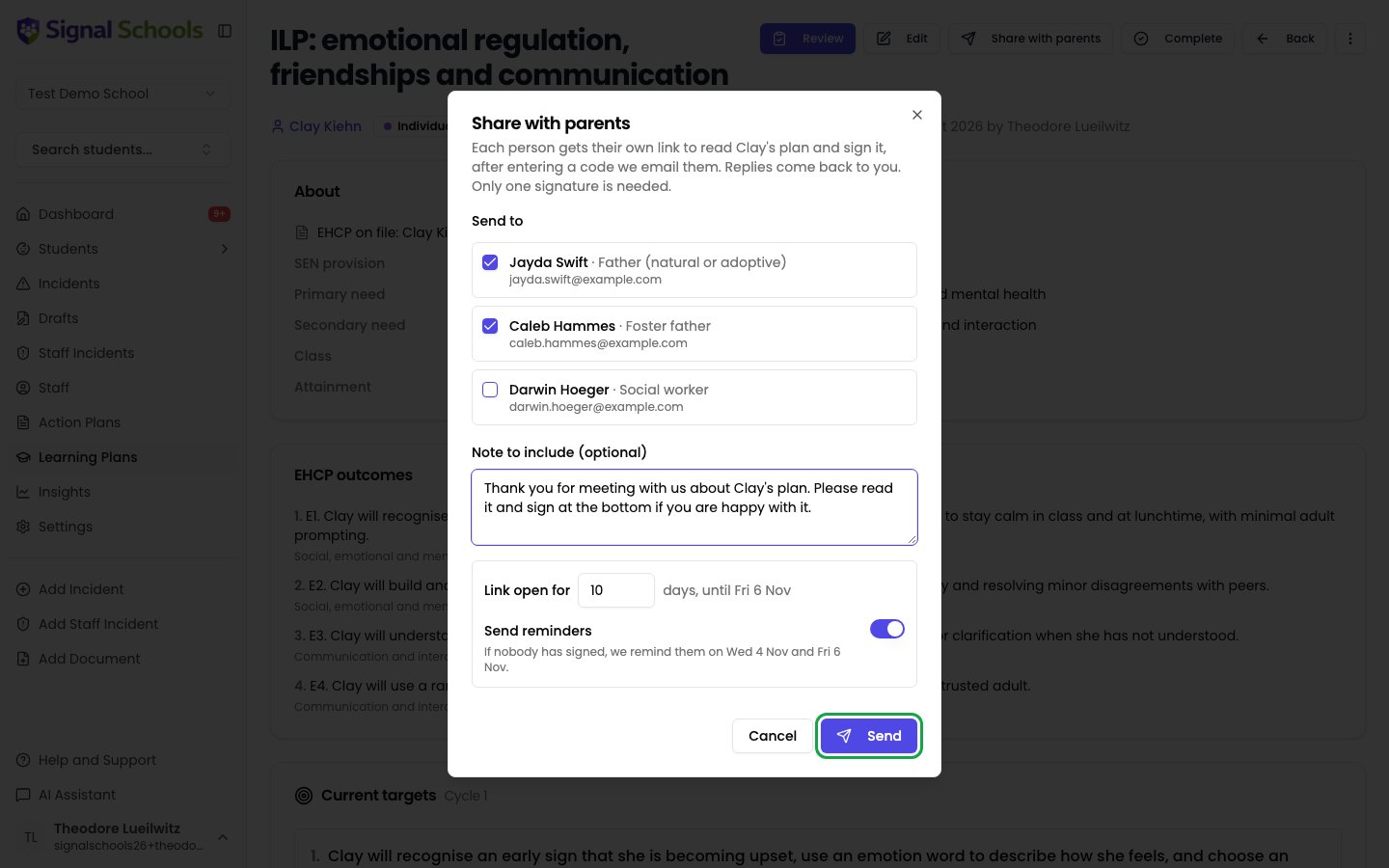
- Contacts without an email address are shown but cannot be ticked.
- If a contact has a court order recorded, Signal shows a warning and never ticks them for you. Check the order allows them to receive the plan before you tick them.
- You can send to up to six people at once.
3
Add a note (optional)
Under Note to include, add a short personal message. For example, thank them for coming to the review meeting.
4
Check how long the link stays open
The link stays open for your school’s default number of days (10 unless your school changes it). With Send reminders on, Signal reminds parents 3 days and 1 day before the link expires, but only while nobody has signed. You can change both for this send.
5
Send
Click Send. Each person gets their own email from your school with a link to the plan and your note. Their replies come back to you.
How parents sign
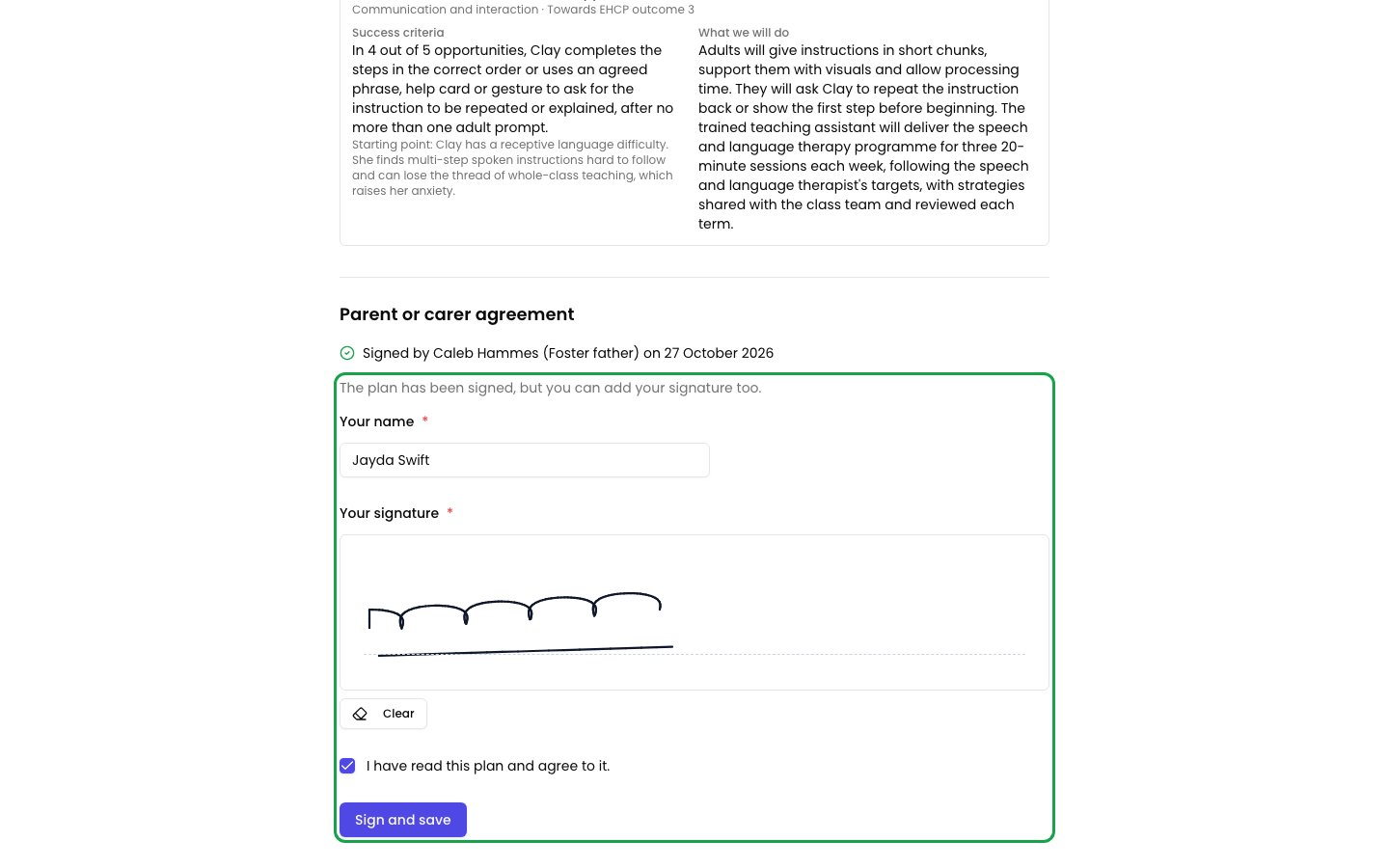
- The parent clicks the link in their email.
- Signal emails a 6-digit code to the same address, so only that person can open the plan.
- They read the plan, type their name, sign with their finger or mouse, and tick to confirm they have read it and agree.
See who has opened and signed
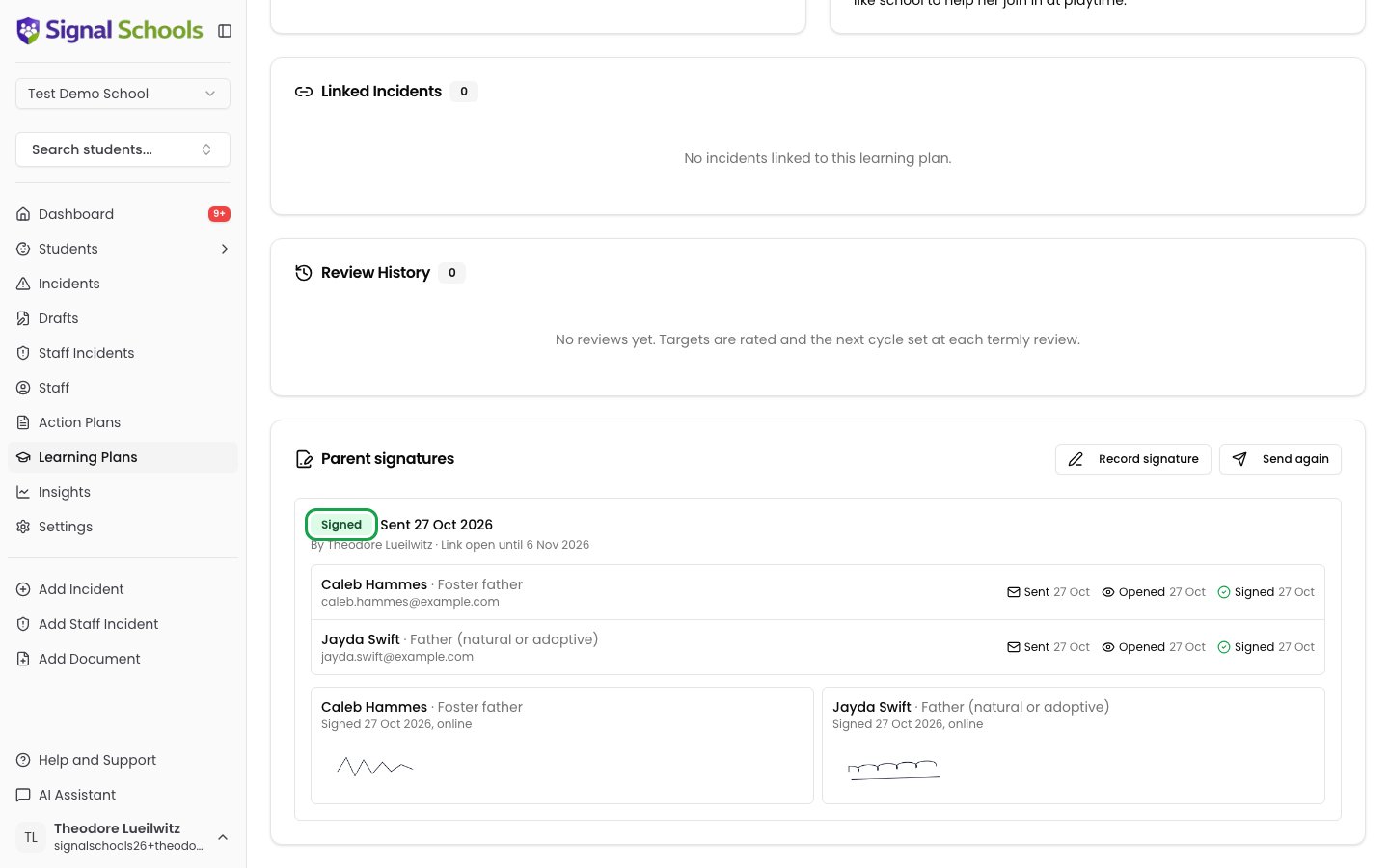
The Parent signatures card on the plan shows each time the plan was sent, newest first:- Awaiting signature, Signed, Expired, not signed or Withdrawn
- When the link expires, and whether reminders have been sent
- For each parent: when the link was Sent, when they Opened the plan, and when they Signed
- Each signature, with the date and how it was given
Resend or withdraw a link
- Resend emails one parent a new link. Their old link stops working. Use this if they have lost the email.
- Withdraw stops every link on that send from working. Signatures already given are kept.
Record a signature collected in school
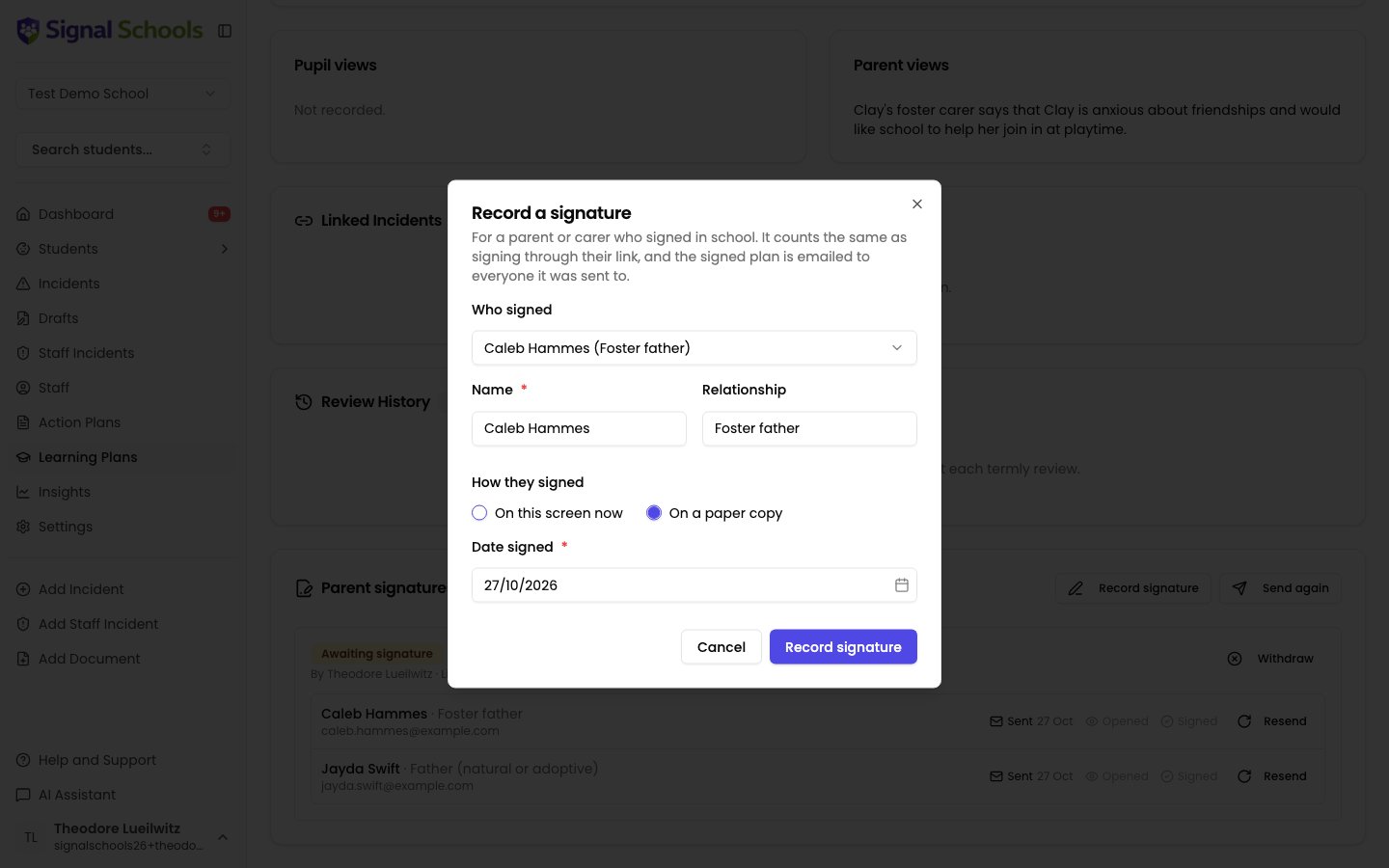
If a parent signs at the review meeting, or signs a paper copy, click Record signature on the Parent signatures card.- Choose who signed. If the plan was sent to them, pick them from the list, or choose Someone else and type their name.
- Choose On this screen now and ask them to sign in the box, or choose On a paper copy and enter the date they signed.
- Click Record signature.
Download a PDF
-
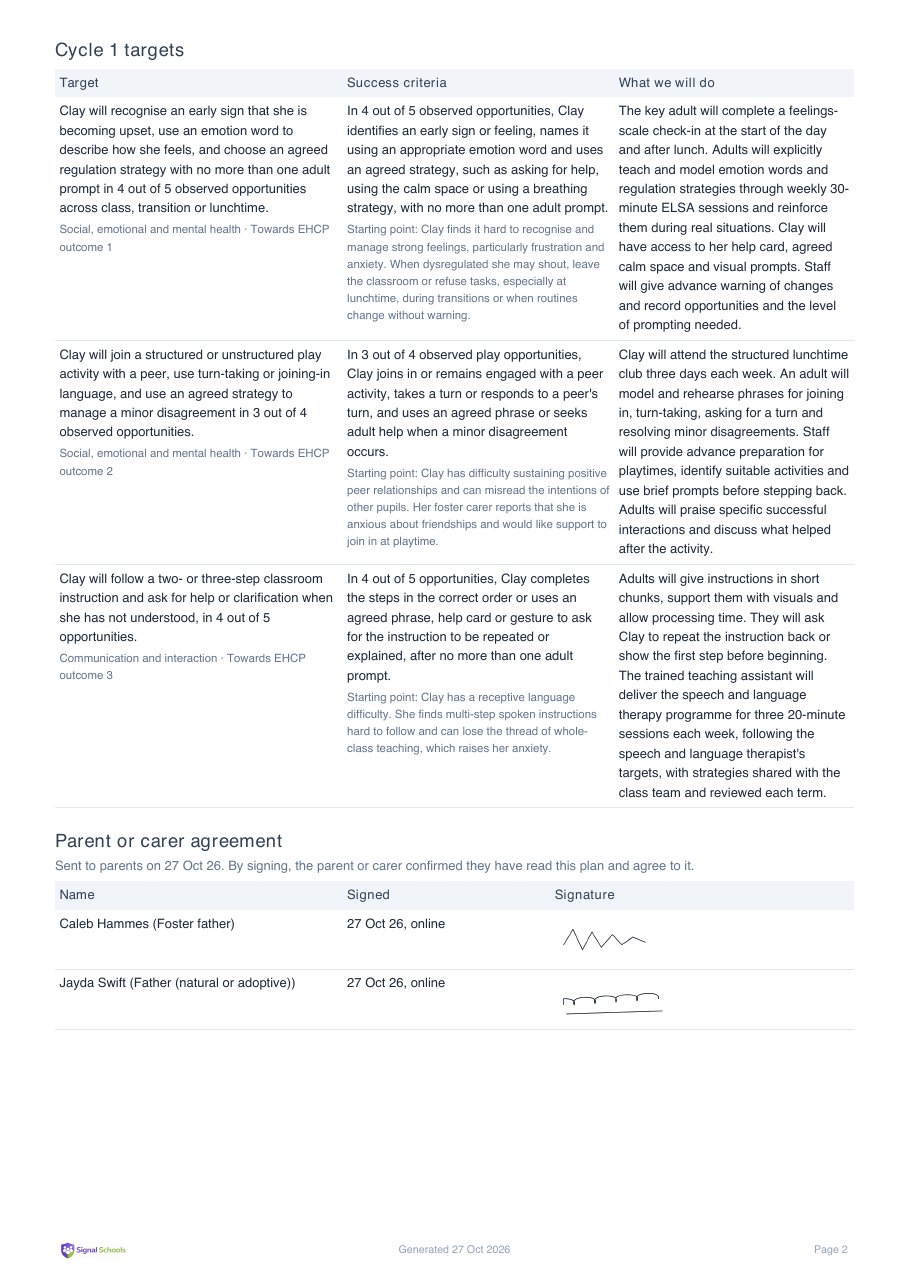
To download the whole plan, open it, click the ⋮ menu and choose Download PDF. Once a parent has signed, the PDF ends with a Parent or carer agreement showing each signature, their name and the date.
- To download one review, expand it under Review History and click Download for parents.
Change your school’s defaults
Go to Settings → Learning Plans → Sharing with parents to set how many days links stay open (1 to 60) and whether reminders are on by default. This requires the Owner, DSL or Deputy DSL role.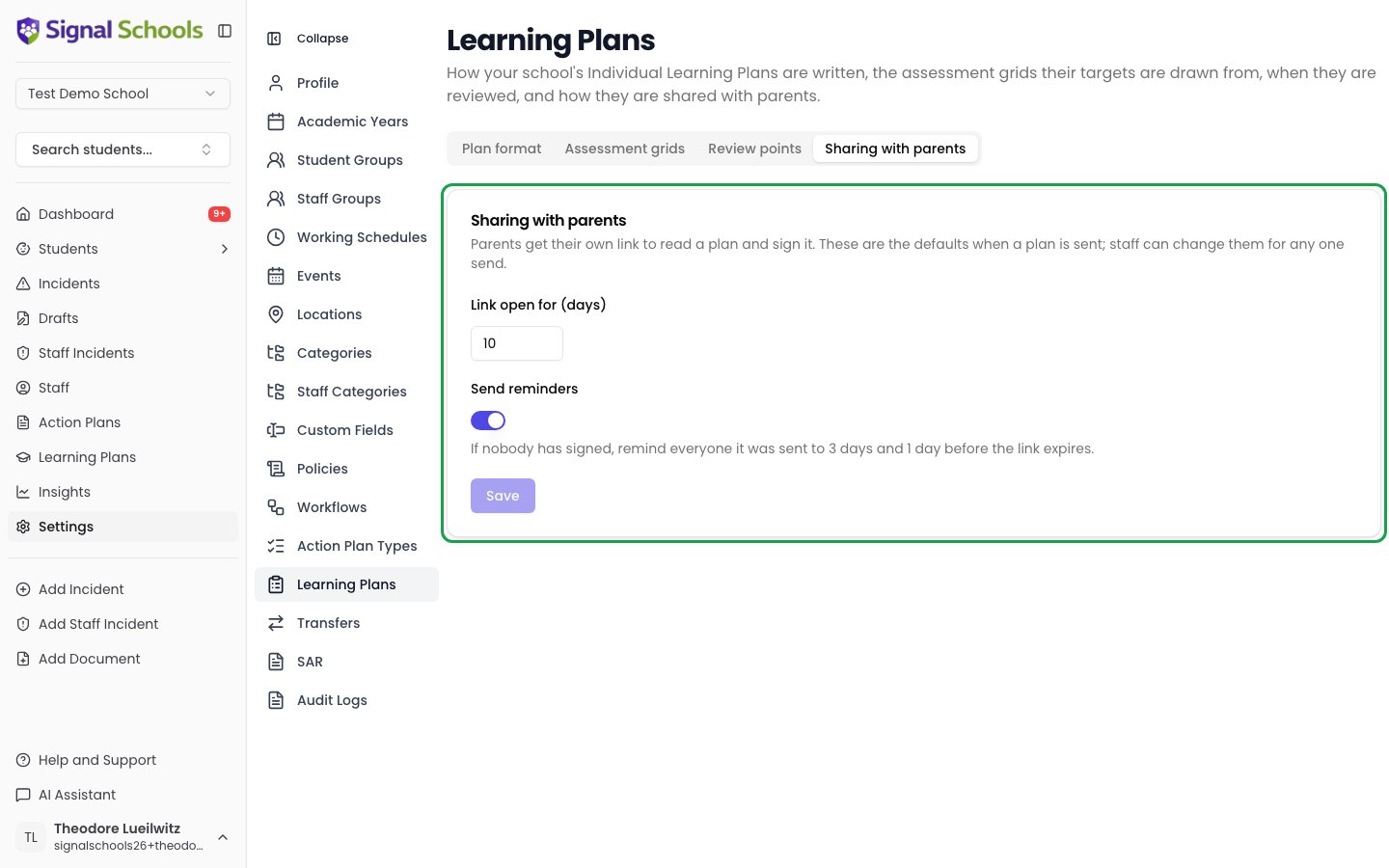
Related pages
Termly Reviews
Carry out the review that produces the record parents receive.
Contacts and guardians
Keep the pupil’s contacts and email addresses up to date.