
- A Physical category might require a field for “Type of restraint”
- You might want a “Witness present” yes/no field for all incidents involving a specific student group
- A “Referral outcome” dropdown for incidents involving pupil premium students
Managing custom fields requires Deputy DSL or above.
How custom fields work
Each custom field configuration has:- A name — to identify the configuration (e.g. “Physical Incident Fields”)
- One or more field definitions — the actual fields that appear on the form (e.g. “Type of restraint”, “Witness present”)
- Criteria — conditions that determine when the fields appear (categories, event types, locations, academic years, students, student groups, SEN status, pupil premium)
Criteria matching
- No criteria means the fields appear on every incident of that type (student or staff)
- Criteria within the same type are combined with OR logic — e.g. if you select categories “Physical” and “Emotional”, the fields appear for either category
- Criteria across different types are combined with AND logic — e.g. if you select category “Physical” and student group “Year 7”, the fields only appear when both match
Staff incident custom fields only support category criteria. Student property criteria (student groups, SEN status, pupil premium) are only available for student incident fields.
Setting up custom fields
Go to Settings > Custom Fields to view and manage your custom field configurations.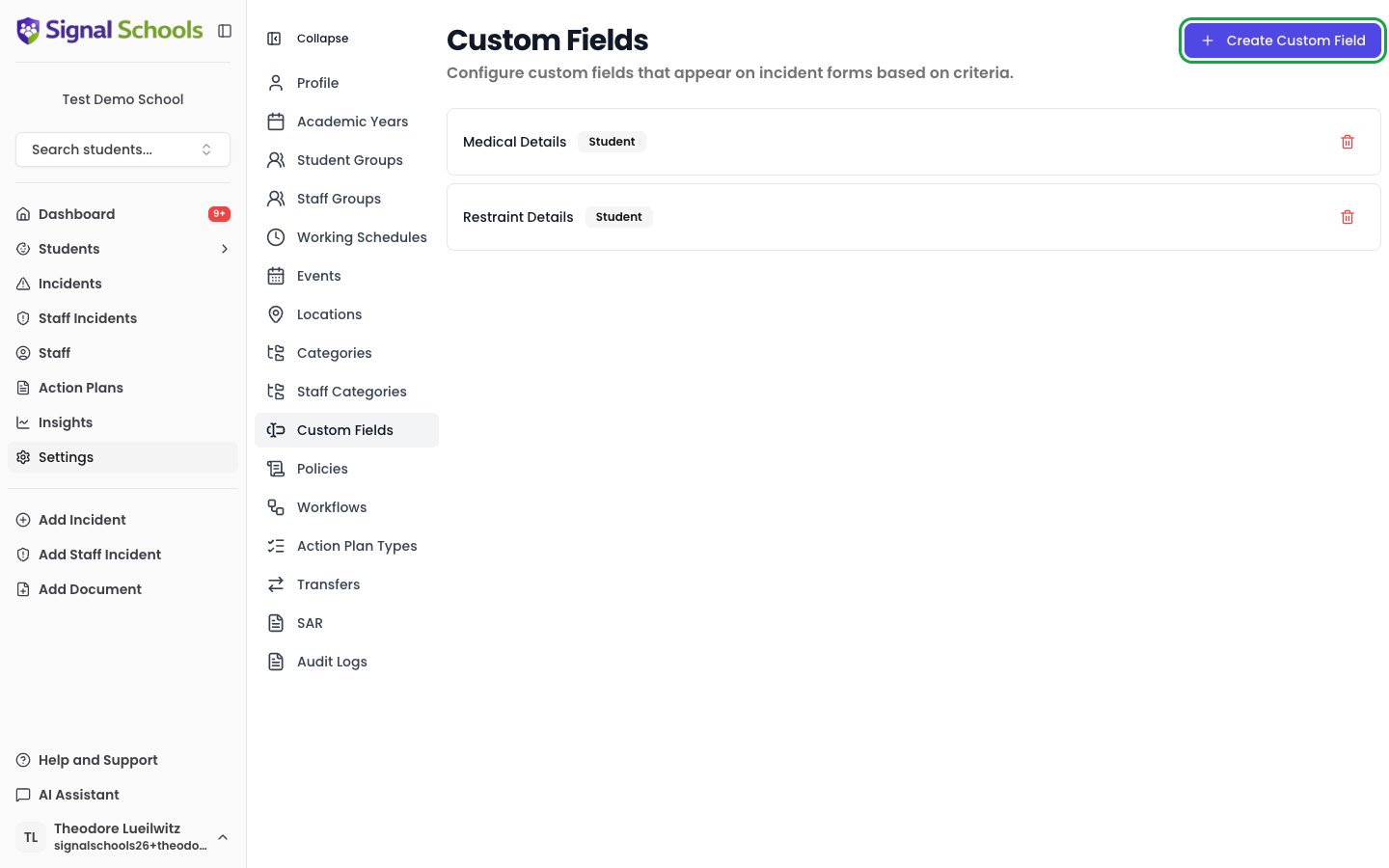
Creating a custom field configuration
1
Create a new configuration
Click Create Custom Field to open the editor.
2
Choose the incident type
Use the type dropdown in the editor to choose whether the fields apply to Student Incidents or Staff Incidents.
3
Name the configuration
Give the configuration a name that describes its purpose (e.g. “Restraint Details”, “Attendance Follow-up Fields”).
4
Add field definitions
Click Add Field to add one or more fields to the configuration. For each field, provide:
- Field Name — the label that appears on the incident form (e.g. “Type of restraint”)
- Field Type — the kind of input:
- Single Line Text — a short text field
- Multi-line Text — a longer text area
- Dropdown — a single selection from a list of options
- Multi Select — multiple selections from a list of options
- Number — a numeric value, useful for anything you want to total or average (such as a duration in minutes)
- Yes / No — a simple toggle
- Required — whether the field must be completed before submitting the incident
- Guidance Text — optional help text shown as a tooltip to help staff understand what to enter
- Options — for Dropdown and Multi Select types, type each option and press Enter to add it
5
Set criteria
In the Criteria section of the editor, control when these fields appear. You can select:
- Categories — the fields appear when one of the selected categories is on the incident
- Event Types — the fields appear when one of the selected event types is recorded on the incident
- Locations — the fields appear when the incident happened at one of the selected locations
- Students — the fields appear for the specific students you name (student incidents only)
- Student Groups — the fields appear when the student belongs to one of the selected groups (student incidents only)
- Academic Years — the fields appear when the student is in one of the selected academic years (student incidents only)
- SEN Status — the fields appear when the student has the selected SEN status (student incidents only)
- Pupil Premium — the fields appear when the student is flagged as pupil premium (student incidents only)
6
Save
Click Create to save the configuration. The fields will now appear on matching incidents. When editing an existing configuration, the button reads Save Changes.
Editing and disabling
Click the edit button on any configuration to change its fields or criteria. When editing, you can also toggle the Enabled switch to disable the configuration — disabled configurations stop appearing on new incidents but existing incident data is preserved.Renaming fields and options
When you rename a field or one of its dropdown options, the new name applies everywhere — including on incidents recorded before the change. An incident recorded last term under “Ground hold” will show “Ground restraint” as soon as you rename that option. This keeps your records consistent, so you are never left comparing old and new names for the same thing in reports.If you want a genuinely different option rather than a corrected name, add a new option instead of renaming the existing one. Renaming rewrites the label on every past record that used it.
Deleting and archiving
Click the delete button to remove a configuration. What happens next depends on whether the fields have been used:- Never used — the configuration is deleted permanently.
- Used on at least one incident — the configuration is archived instead. It stops appearing on new incidents, but every incident that already has values keeps them, and those values stay visible and reportable.
Reporting on custom fields
Custom fields are not just a record — you can report on them. On the Insights page you can group incidents by any dropdown, multi-select, or yes/no custom field. For example, group by “Hold Type” to see how many incidents involved each kind of physical intervention. Select any bar or segment to drill through to the matching incidents. You can also ask the AI assistant questions that use custom fields directly, such as “how many restraints used a ground hold this term?” or “what was the average duration recorded?” for number fields.Free-text custom fields cannot be grouped or totalled, because every value is different. Use dropdowns or yes/no fields for anything you want to count or compare.