
Any member of staff with a Signal account can record an incident, so if you can log in you can always report a concern. Seeing the incident afterwards is a separate matter — that needs the Contributor role or above, and is subject to any restrictions or exclusions.
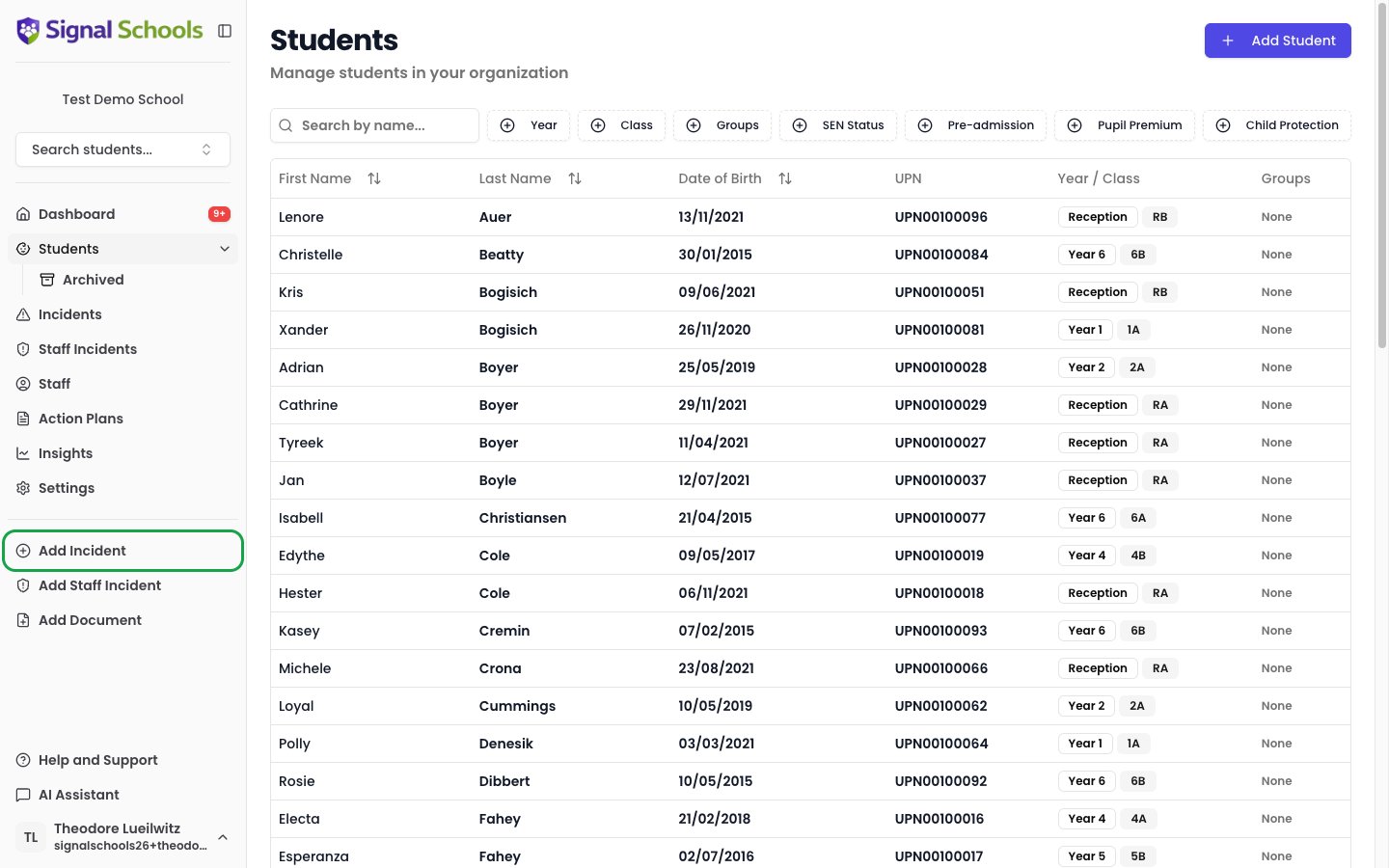
Creating an incident step by step
1
Open the incident form
Click Add Incident from the sidebar quick action or from your dashboard. The incident creation form opens as a side panel.
2
Select the main student
Search for and select the student the concern is about. You must select at least one main student. You can select multiple students if the concern involves more than one child equally.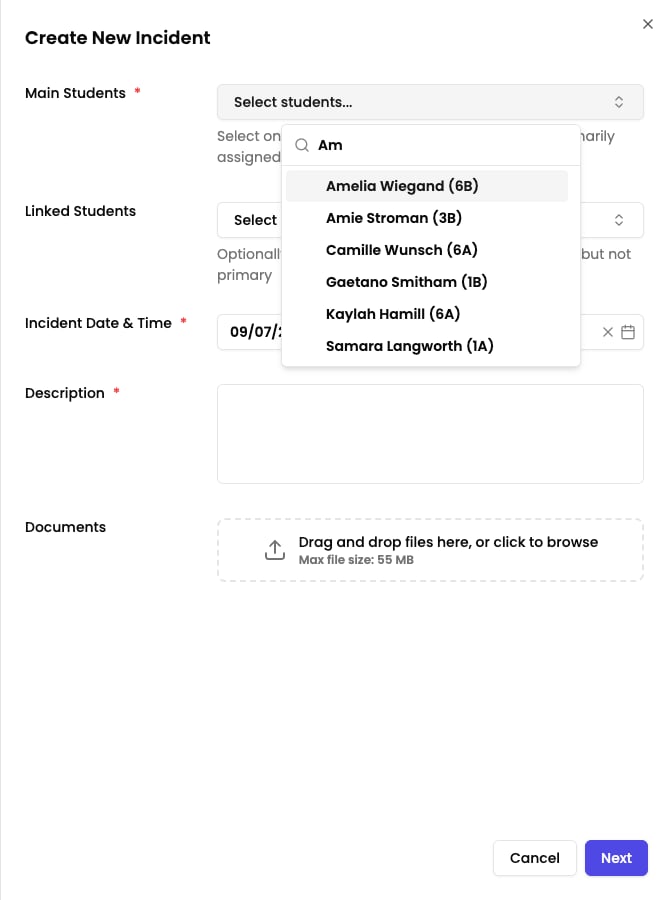
3
Add linked students (optional)
If other students are connected to the concern — such as siblings, witnesses, or other children involved — add them as linked students. Linked students are associated with the incident but are not the primary subject.
4
Set the date and time
Choose the date and time the concern arose or was observed. This defaults to the current date and time, but you can adjust it to reflect when the event actually happened.
5
Write the description
Describe what happened in your own words using the rich text editor. Be specific and factual — include what you saw, heard, or were told, who was involved, and any immediate actions you took.You can @mention colleagues in the description by typing 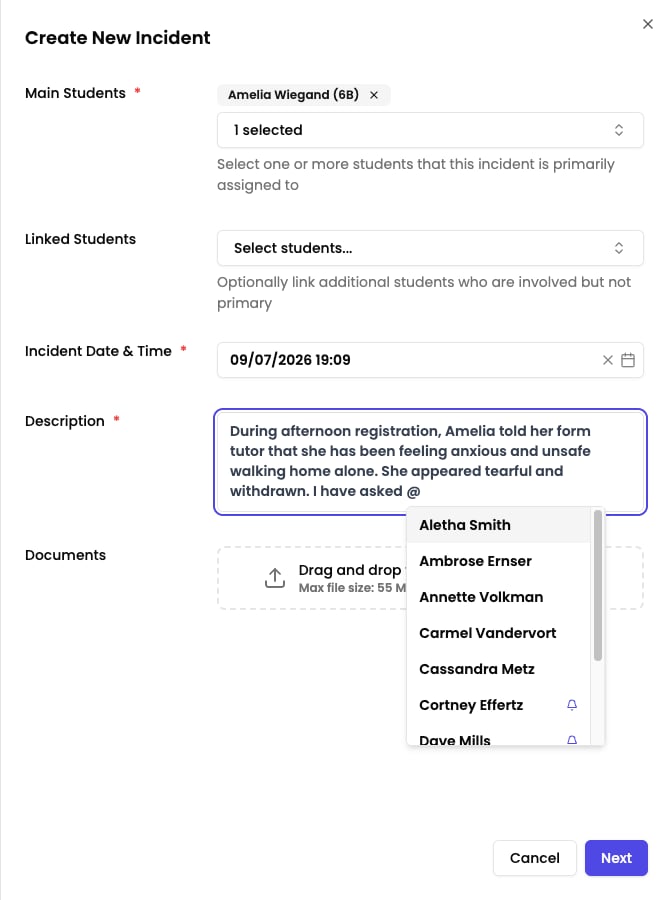
@ followed by their name. Mentioned colleagues will see a notification on their dashboard.- /reminder — sets a reminder on this incident. Write the task and when it is due in plain English, such as “call mum by friday”.
- /note — leaves a class note for the child’s class team, such as “monitor for spare clothes tomorrow”.
6
Attach documents (optional)
If you have supporting evidence — photographs, scanned letters, reports, or screenshots — upload them using the document attachment area. You can attach multiple files.
7
Create an incident from a document
If your concern already exists as a document — a written account, a letter from another agency, a body map, or a report — you do not need to retype it. Attach the file, and a Create incident from document button appears. Signal reads the document and drafts the description for you.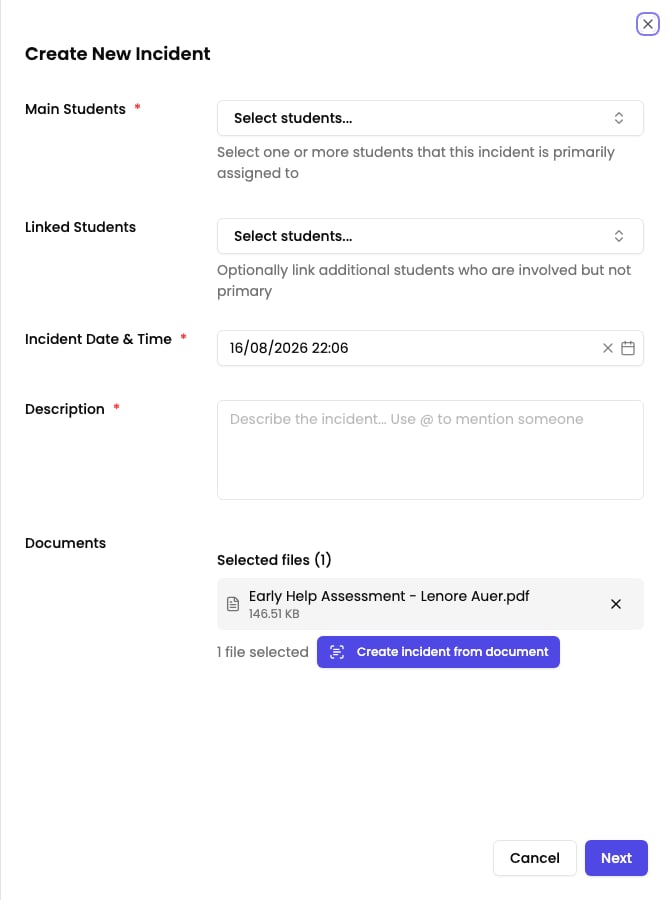
The button only appears once you have selected a file. If you cannot see it, attach the document first.Always read the drafted description before continuing. It is a first draft taken from the document, and you remain accountable for the record — correct anything it has misread or missed.
8
Submit for AI analysis
When you have completed the description and attachments, click Next. Signal’s AI analyses your description to suggest how the incident should be classified.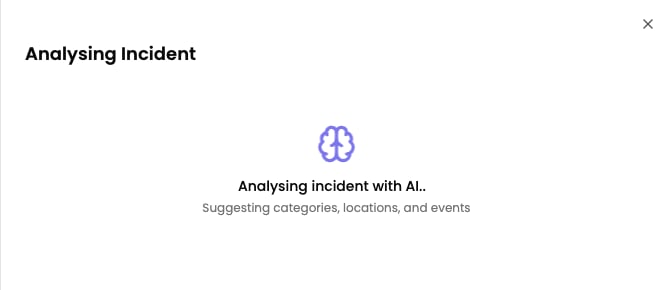
9
Review AI suggestions
After analysis, Signal presents its suggestions: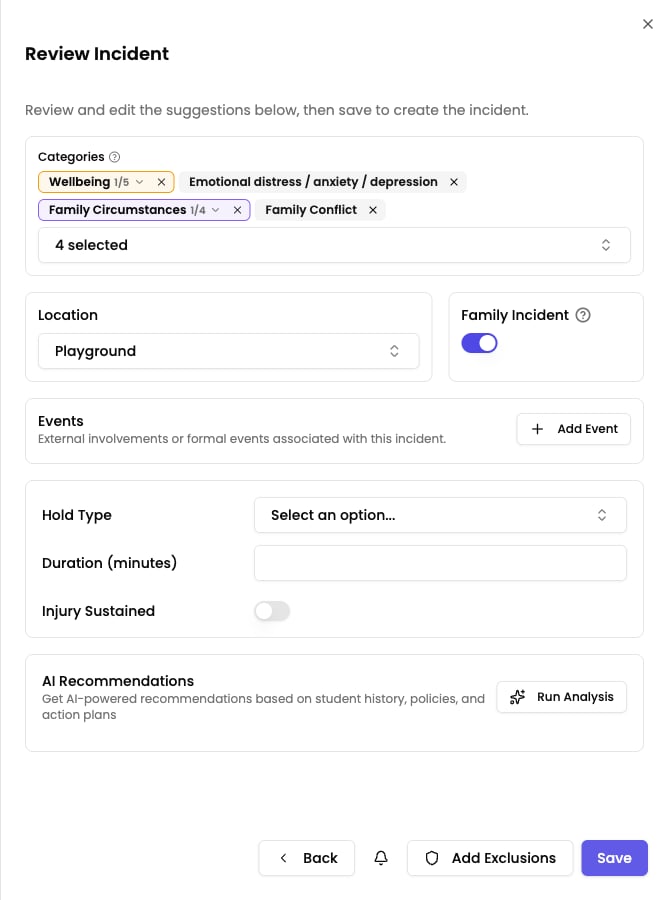
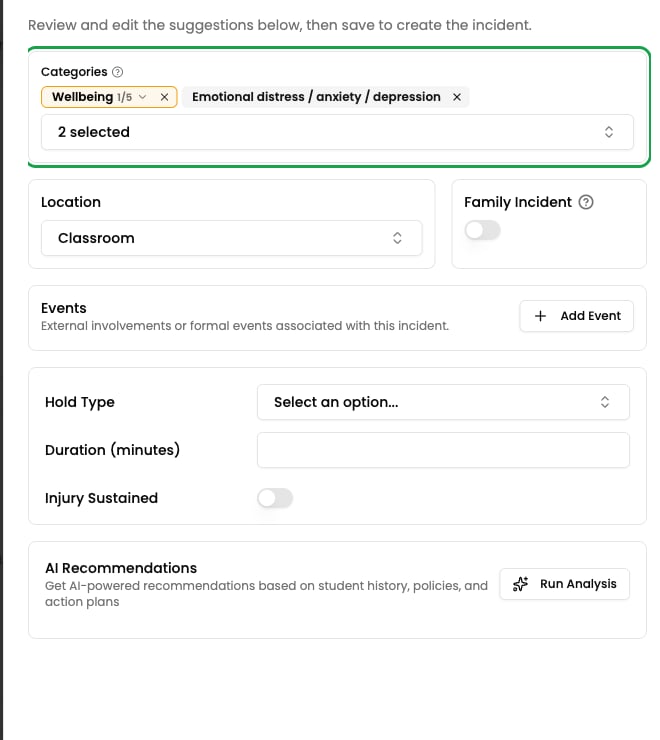
- Categories — the types of concern the AI has identified (e.g. Physical, Emotional, Neglect). Suggested categories are pre-selected, but you can add or remove them.
- Location — where the AI thinks the incident took place. You can change this.
- Family Incident — whether the record concerns the whole household rather than one child. See the Confirm whether it is a family incident step below.
- Events — significant actions the AI has picked up from your description, such as a referral or a call home. You can add or remove them.
10
Select categories
Choose at least one category for the incident. Categories are required. If the AI has pre-selected categories, confirm they are correct or adjust them.
11
Confirm whether it is a family incident
A family incident is one that tells you something about the household, the family unit, or a parent or carer’s circumstances — rather than something that happened between the pupil and school or between the pupil and their peers.Signal reads your description and sets the Family Incident toggle for you. Check it before you save and change it if it is wrong.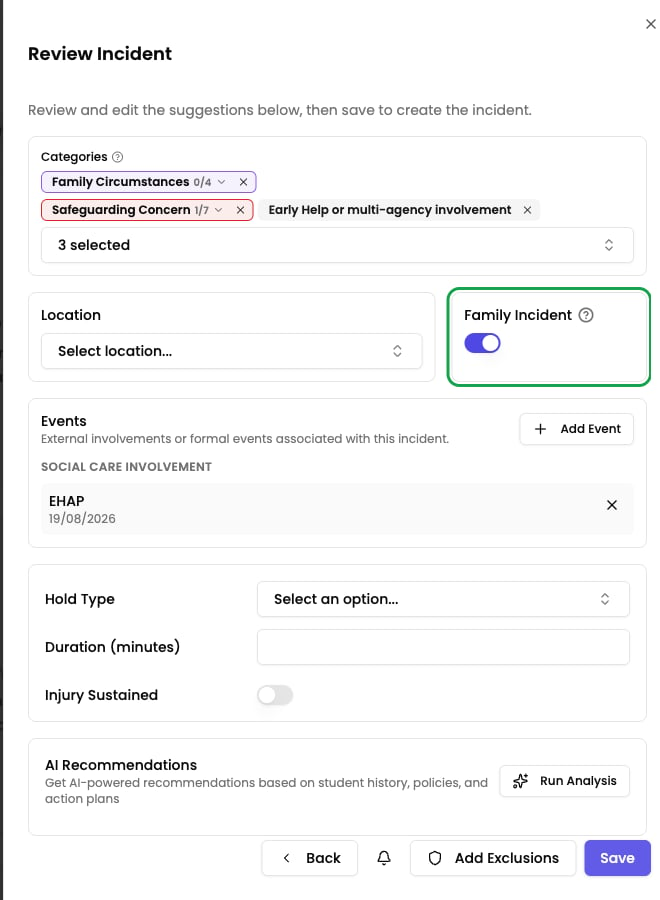
- Domestic abuse, or police attending the home
- A parent or carer’s illness, mental health, substance misuse, or imprisonment
- Housing problems — eviction, temporary accommodation, no heating, no food
- Bereavement, parental separation, or a contact dispute
- Social care or early help involvement with the family
- It appears on the record of every sibling at your school, so anyone reviewing that child sees the full picture of what is happening at home.
- Any alerts your school has set up for those siblings also fire, so the concern reaches the staff around them — not only the staff around the child you recorded it against. See alert workflows.
12
Complete custom fields (if applicable)
If your school has configured custom fields, additional questions may appear based on the selected categories and the student’s properties. For example, a Physical category might ask for the type of restraint. Complete any custom fields that appear.
13
Run analysis for recommendations (optional)
Signal can also suggest actions to take on the incident, but only when you ask for them. Click Run Analysis to generate recommendations — these might include suggested next steps, relevant policies, or areas to follow up on. You can review, edit, or dismiss individual recommendations before saving.If you skip this step, the incident saves exactly as you have written it. Nothing is generated in the background.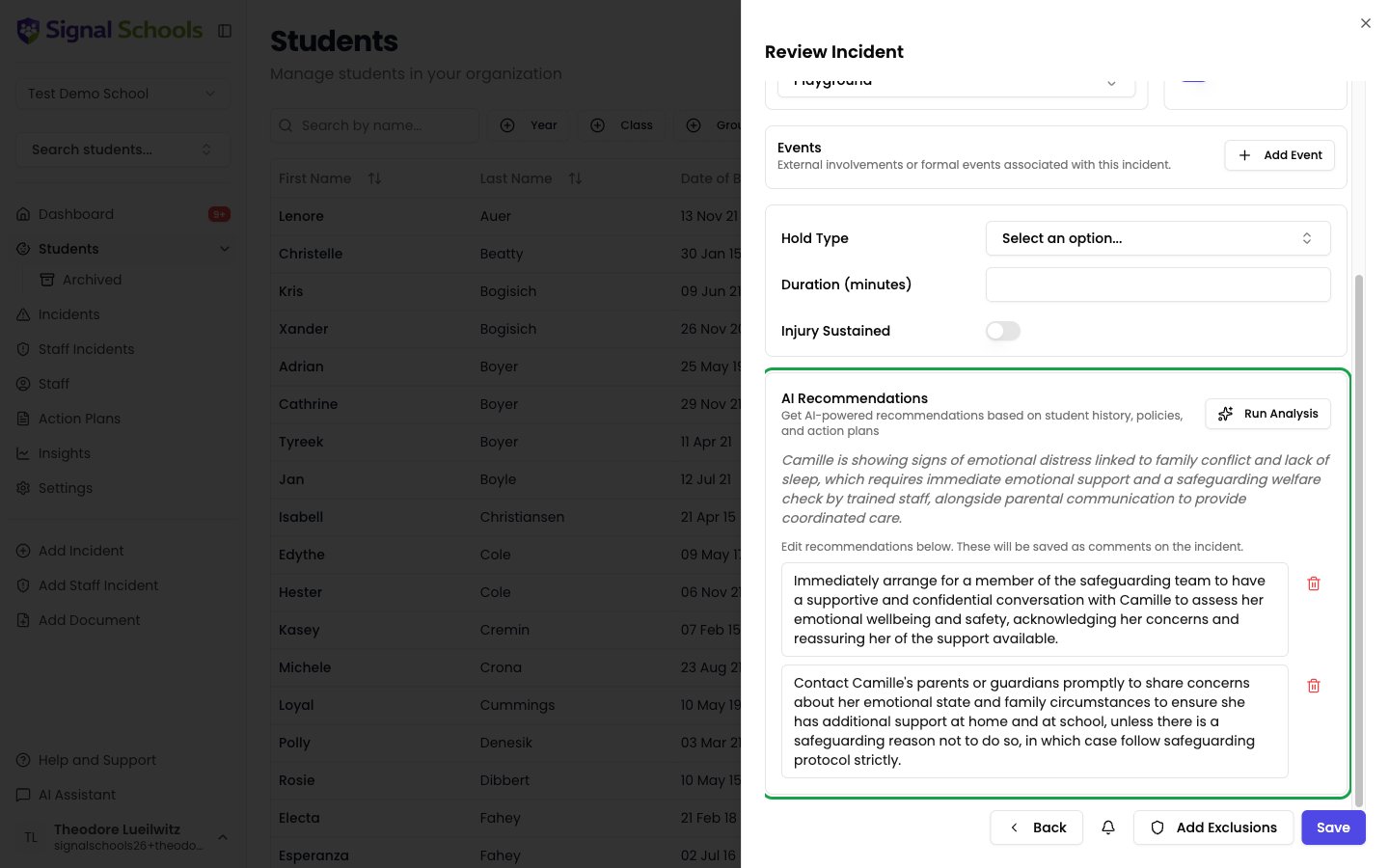
14
Set visibility exclusions (optional)
Setting visibility exclusions requires Deputy DSL or above.
- DSL only — hides the incident from everyone except DSLs, Deputy DSLs, and Owners
- Exclude specific staff — prevent named staff members from seeing the incident
- Exclude Staff Groups — prevent entire groups from seeing the incident
15
Save the incident
Click Save to create the incident. Signal saves the record and checks it against your school’s alert rules.
What happens after saving
Once the incident is saved, several things happen automatically:- Workflows are checked — if the incident matches any of your school’s workflows, actions are triggered automatically — alerting staff, emailing parents, or restricting visibility.
- The incident appears on dashboards — it shows up in the incident list, on the student’s timeline, and in any filtered views that match its categories or other attributes.
- It feeds into insights — the incident contributes to your school’s safeguarding analytics and trend data.
- The AI Assistant can reference it — the incident becomes available to the AI Assistant for future queries and research.
If you have the Reporter role, saving ends on a Report Submitted confirmation telling you the report has been sent to the safeguarding team, rather than the brief pop-up other roles see. Click Done to close it.You will normally find your report in your Incidents list afterwards. If the safeguarding team judges the case too sensitive for wider access, it may not appear there — that is intentional, and does not mean the report failed to save. See Roles and permissions.
Tips for recording incidents
The AI suggestions are there to help, not to decide for you. Always review the suggested categories, location, and events to make sure they accurately reflect the concern. You have the final say on how every incident is classified.