
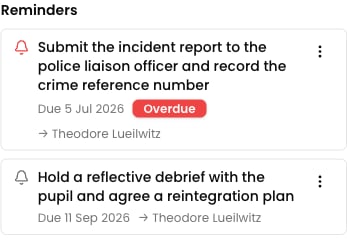
You need the Contributor role or above to add reminders.
Adding a reminder manually
1
Open the student incident
Open the student incident you want to set a reminder on. Reminders are available on student incidents only.
2
Open the actions menu
Open the incident’s More actions (⋮) menu and select Create Reminder.
3
Describe the follow-up
Write a short description of what needs to happen — for example, “Call mum to arrange a meeting”.
4
Set a due date
Choose the due date. Reminders due today or in the past are highlighted so they stand out.
5
Assign it (optional)
Assign the reminder to a specific member of staff, or leave it unassigned. Unassigned reminders are treated as a task for the safeguarding team and are visible to DSL-level staff.
6
Save
Click Add Reminder. It appears in the incident’s Reminders section straight away.
Adding a reminder as you write
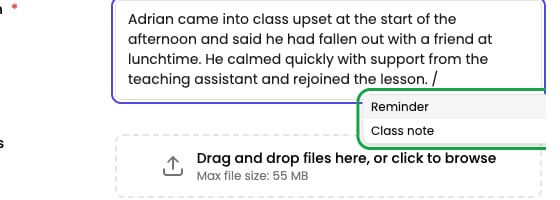
You do not have to stop writing to set a reminder. While you are typing an incident description or a comment, type / and choose Reminder — you can capture the follow-up in the same sentence where you describe why it is needed.Slash commands work in the description when you record or edit a student incident, and in the box where you add or edit a comment. They are not available on staff incidents.
1
Type a forward slash
In the description or comment box, type / at the start of a line or after a space. A short menu opens listing Reminder and Class note.A slash in the middle of a word does nothing, so “and/or”, “n/a” and dates like 10/09/2026 behave normally.
2
Choose Reminder
Use the arrow keys and press Enter, or click Reminder. You can also narrow the menu by typing —
/rem and /todo both find it.3
Write the follow-up, including when
Type the task in plain English and say when it is due — for example, “call mum by friday” or “review this next week”.Press Enter when you have finished. Signal reads the date out of what you wrote and shows it in brackets, so the chip reads
call mum by friday (18 Sep 2026).4
Assign it to someone else (optional)
The reminder is yours by default. To give it to a colleague, type @ and their name inside the reminder — they are assigned it instead, and they are notified in the usual way.
5
Save the incident or send the comment
The reminder is created when the incident or comment is saved. It then behaves exactly like one added from the menu.
Dates and unfinished reminders
Signal reads everyday phrases — “by Friday”, “next week”, “in 10 days” — and dates written the UK way, so 10/09/2026 is 10 September. A weekday on its own always means the next one coming. A reminder chip turns blue once it has a date. If you have not given it one yet it turns amber, and a pill appears under the box reading the reminder’s words followed by not set. Click that pill to pick a date from a calendar.A reminder must have a due date before the incident or comment will save. If one is missing, Signal tells you in red beneath the box — for example, “A reminder needs a due date before you can save.” Nothing you have typed is lost; set the date and save again.
Who can complete, edit, and delete
- Complete — the assigned staff member, or any DSL-level user, can mark a reminder complete once the follow-up is done.
- Edit and delete — the person who created the reminder, or any DSL-level user, can change or remove it.