
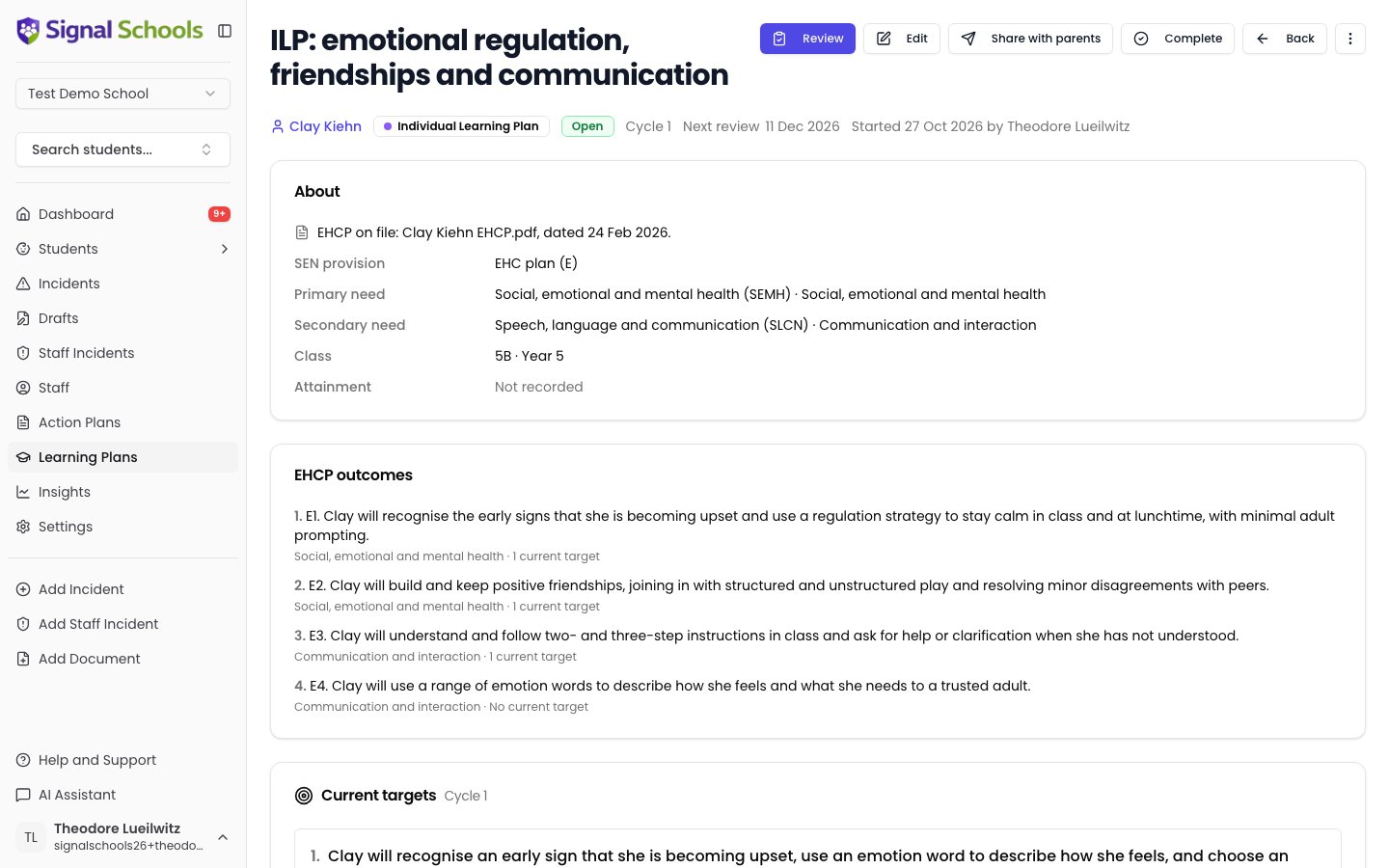
Learning plans and action plans
Signal has two kinds of plan. They do different jobs, and a pupil can have both.
As a rule of thumb, use a learning plan when a pupil needs SEN support with targets you review each term, and an action plan for a time-limited intervention or a response to incidents. See Action Plans for how those work.
The two kinds of plan work together. When you draft a learning plan, each open action plan you tick becomes at least one target, linked to it — for example, a behaviour plan becomes a target about staying regulated at lunchtime.
What a learning plan contains
The pupil, their SEN status and their needs
Each plan is for one pupil. Their SEN status, primary need and any secondary need come from their record in Signal (and so from your MIS when it is connected), so they are always in step with the register. The needs shape the plan: a pupil with social, emotional and mental health needs gets targets about regulation and relationships, and a pupil with a learning difficulty gets targets from the curriculum. A need suggests where to start, but a plan can cover any area the pupil needs.Current attainment
For each subject your school assesses, the plan records the band the pupil is working at, such as WTS (working towards the expected standard). The band is judged against one year group’s grid: usually the pupil’s own year, or an earlier year for a pupil working below it. See Setting Up Learning Plans. Attainment leads the plan for pupils whose need is in cognition and learning. For other needs it is optional, and folded away until you choose to use it.EHCP outcomes
For a pupil with an Education, Health and Care Plan, the learning plan lists the long-term outcomes from section E of the EHCP. When the EHCP has been uploaded to the pupil’s documents, Signal fills them in for you. The plan’s targets are shorter steps towards these outcomes. See EHCP outcomes.The plan itself
The narrative sections your school uses, such as Reasonable adjustments and What you need to know about me. Your school sets these once, in the plan format.Targets
Each target has three parts, matching the Plan and Do columns schools use on paper:- Target (Plan) — the skill the pupil will show, written as a SMART target. For example: “Given a word bank, Esperanza will spell 8 of 10 Year 3/4 words correctly in 3 out of 4 pieces of writing.”
- Success criteria — how staff will know it has been met.
- What adults will do (Do) — the strategies, interventions and resources, and how often.
Pupil and parent views
What the pupil and their parents or carers say about the plan, in their own words.Reviews
Each review rates every target, records what is working and what is not, the pupil’s and parents’ comments, and the agreed next steps. The review history stays on the plan.How a learning plan works
1
Set up
A DSL sets your school’s plan format and adds an assessment grid for each subject and year group. You only do this once.
2
Write the plan
Choose the pupil, then write the plan — by hand, or with an AI draft you check and edit. The plan starts at cycle 1.
3
Deliver it
Staff make the adjustments and work on the targets. The plan’s adjustments appear whenever anyone records an incident for the pupil.
4
Review it each term
At the termly review, rate each target, record the meeting, and agree the next cycle’s targets. Met targets close; the rest are carried forward or replaced. Reviews fall at your school’s review points, and a plan carries on across the summer into the next school year.
5
Share it with parents
Send parents a link to read the plan and sign it, and see who has signed. You can also download the plan or a review as a PDF.
Who can do what
A pupil is in your class when you are in a Staff Group whose Class is set to the pupil’s class — the same class team used for My Class and class notes. Staff with no role, and Reporters, cannot write or read learning plans. When a Reporter records an incident, they see that the pupil has an active learning plan, but not the plan’s reasonable adjustments.
Where learning plans appear in Signal
-
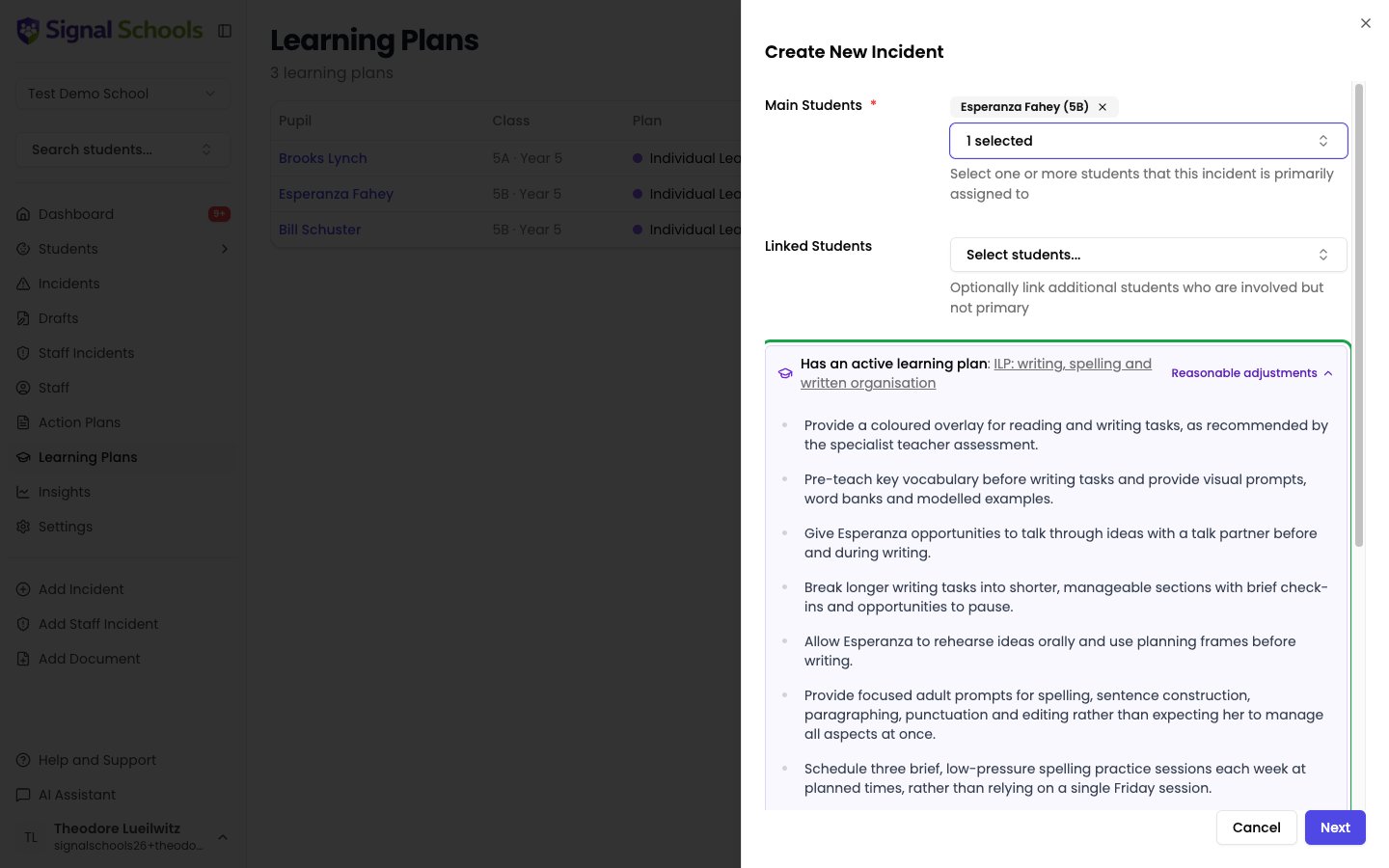
When you record an incident. If a pupil on the incident has an active learning plan, a notice appears on the incident form and on the incident itself, with the plan’s reasonable adjustments one click away. This helps staff recognise when a change in behaviour may be linked to the pupil’s needs. Staff with the Reporter role see that the pupil has an active plan, but not the adjustments text.
-
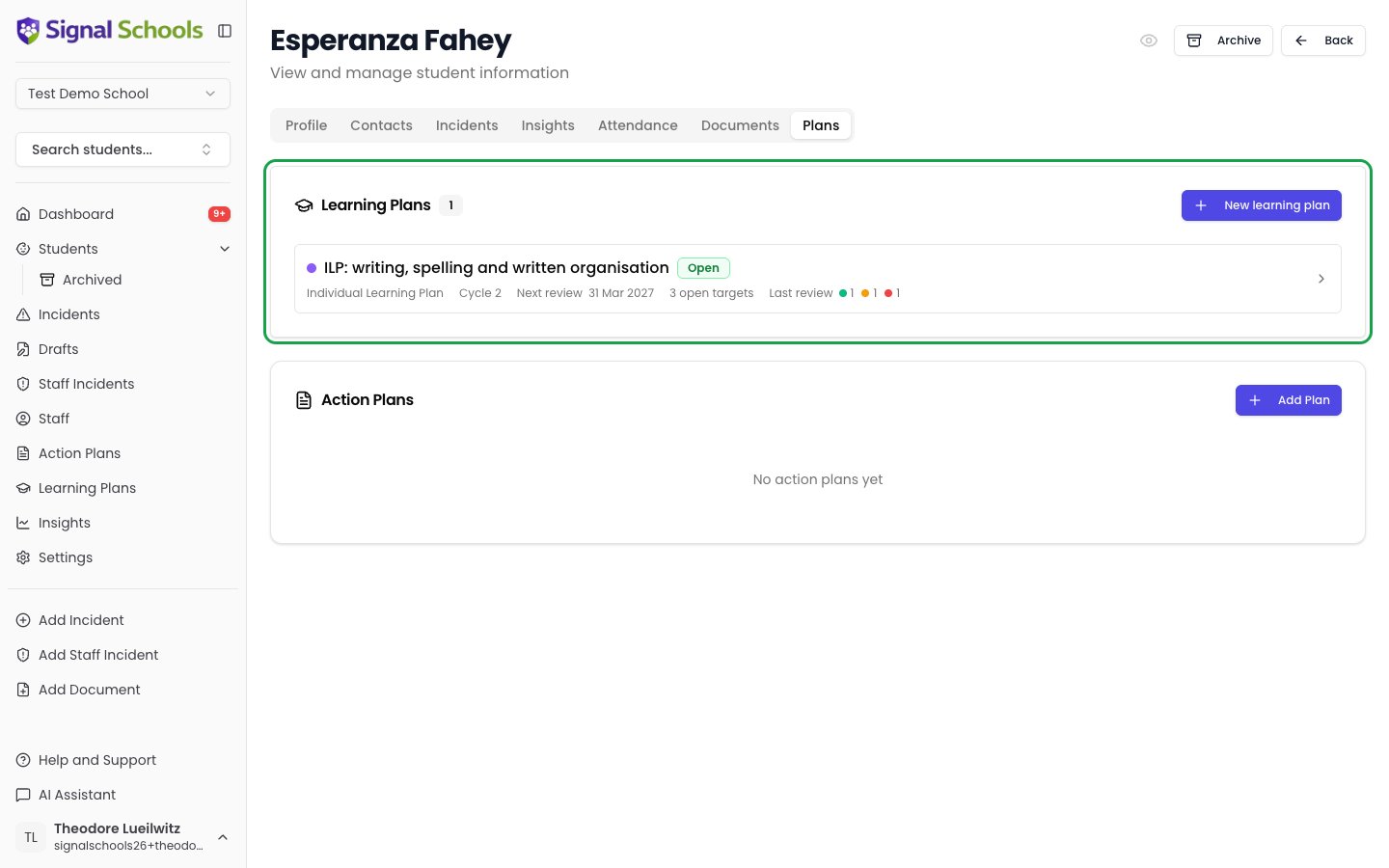
On the pupil’s page. The Plans tab lists the pupil’s learning plans above their action plans, with the cycle, next review date and the ratings from the last review.
- On student overview cards, next to the pupil’s action plans.
- On your dashboard. The Learning plans panel lists reviews due in the next month on plans you wrote.
- In your daily digest, when a review on a plan you wrote is due today or overdue. See Daily Digest.
- By email when a new incident is recorded. The member of staff who wrote the plan is emailed when a new incident is recorded for the pupil, as long as they can see that incident.
- In the AI Assistant. You can ask about a pupil’s learning plan, its targets and its reviews. See AI Assistant.
Learn more
Setting Up Learning Plans
Set your school’s plan format and add your assessment grids.
Creating a Learning Plan
Write a plan, draft it with AI, and set its targets.
Termly Reviews
Rate the targets, record the meeting and start the next cycle.
Sharing with Parents
Send parents a link to read and sign the plan, and see who has signed.