
Managing action plan types requires the DSL, Deputy DSL, or Owner role. Everyone can see the types when creating a plan.
Why the description matters
The description is the most important part of a type. It is not a note for staff — it is the instruction Signal follows every time it drafts a plan of that type. A good description sets out:- The sections, in order, with the headings your school uses.
- What belongs in each section, and how much detail.
- Any tables, and their column headings.
- Recurring labels, such as Review date or Key adult.
- The tone and length your school writes in.
Drafting a description from a plan you already have
Most schools already have their templates as Word documents. Rather than writing a description from scratch, you can upload one or more completed plans and let Signal work out the format for you. Signal reads the documents, identifies the structure they share, and writes a description that will reproduce it. You review and edit the draft before saving.Before you start
- Have up to 3 example plans saved as
.docxfiles, each under 5MB. Older.docfiles are not supported — open them in Word and use Save As to create a.docx. - Use completed plans rather than blank templates where you can. Real examples show Signal the level of detail your school writes in.
- If you have several, use plans for different students of the same type. Signal compares them to work out what is part of the template and what is specific to one child.
1
Open the action plan type
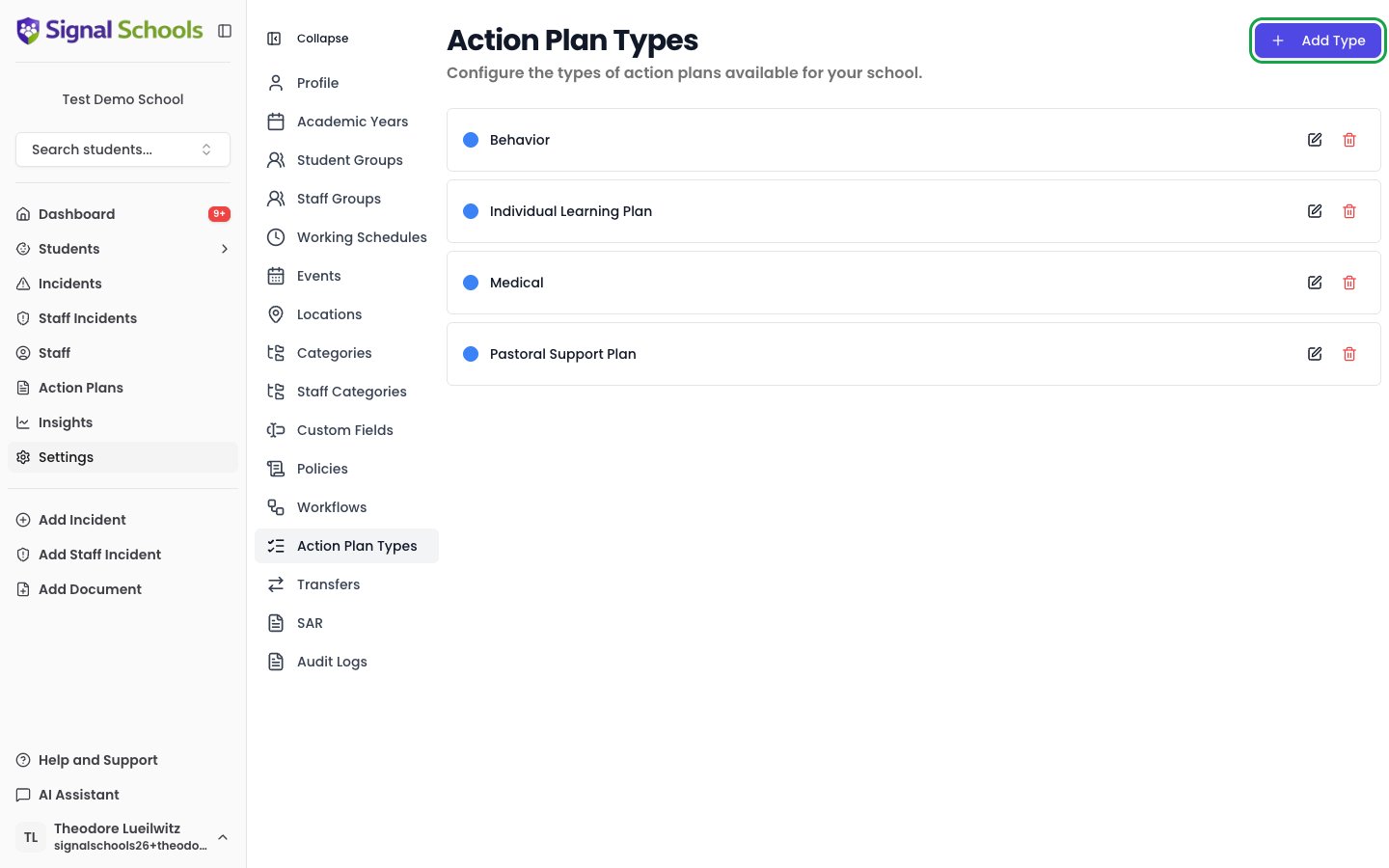
Go to Settings > Action Plan Types. Click Add Type to create a new one, or the edit icon next to an existing type.
2
Choose your example plans
Under the Description field, click Choose files and select your 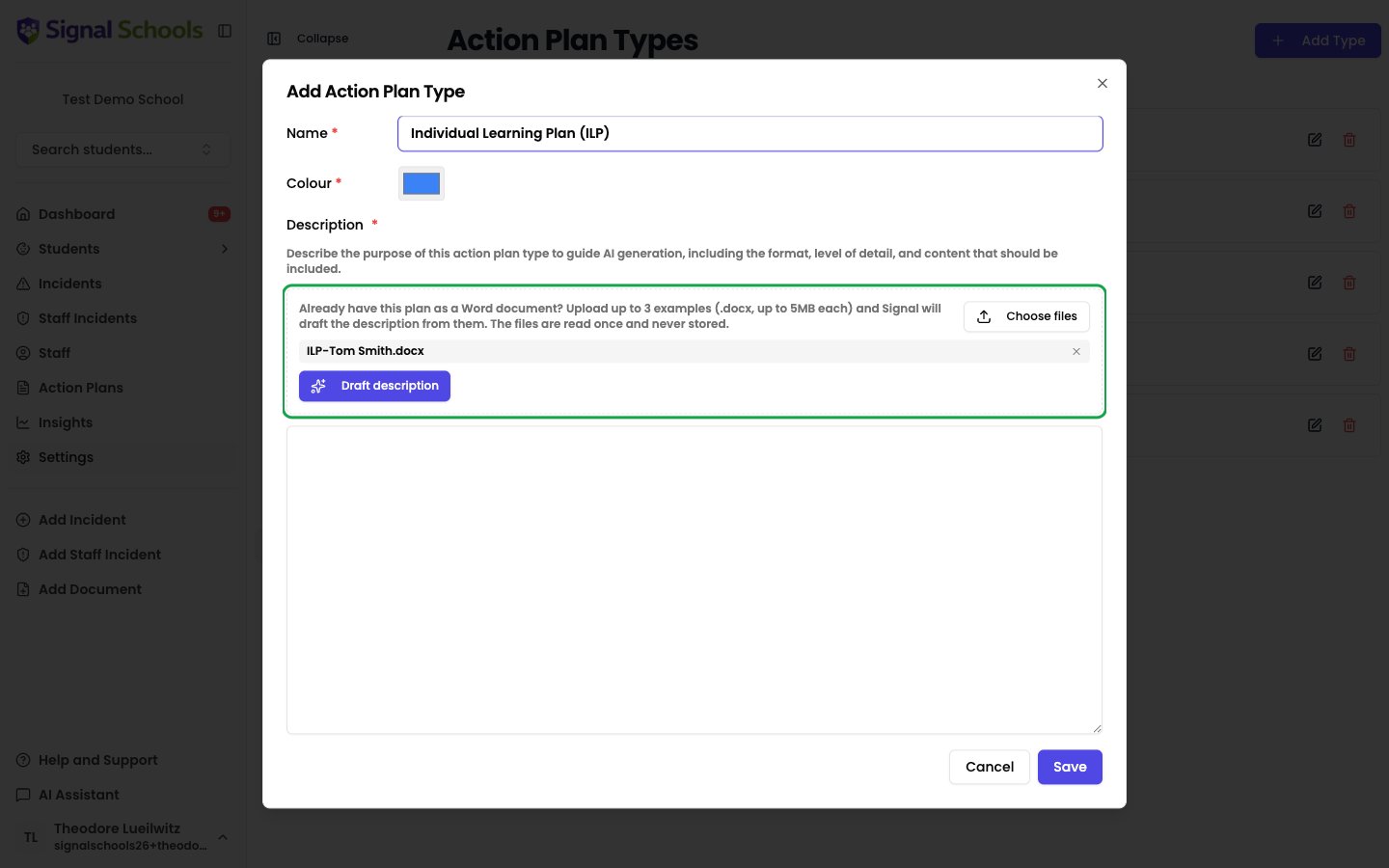
.docx plans. The files you pick are listed so you can remove any you did not mean to include.3
Draft the description
Click Draft description. Signal reads the documents and writes the description into the box below.This usually takes around 20 to 40 seconds, depending on how long your plans are.
4
Review and edit
Read the draft carefully before saving. It is a starting point, not a finished description — check that it has captured every section, that the table columns are right, and that anything unique to your school is described the way you would put it.Edit the text directly in the box to add anything Signal missed or reword anything that does not read as you would like.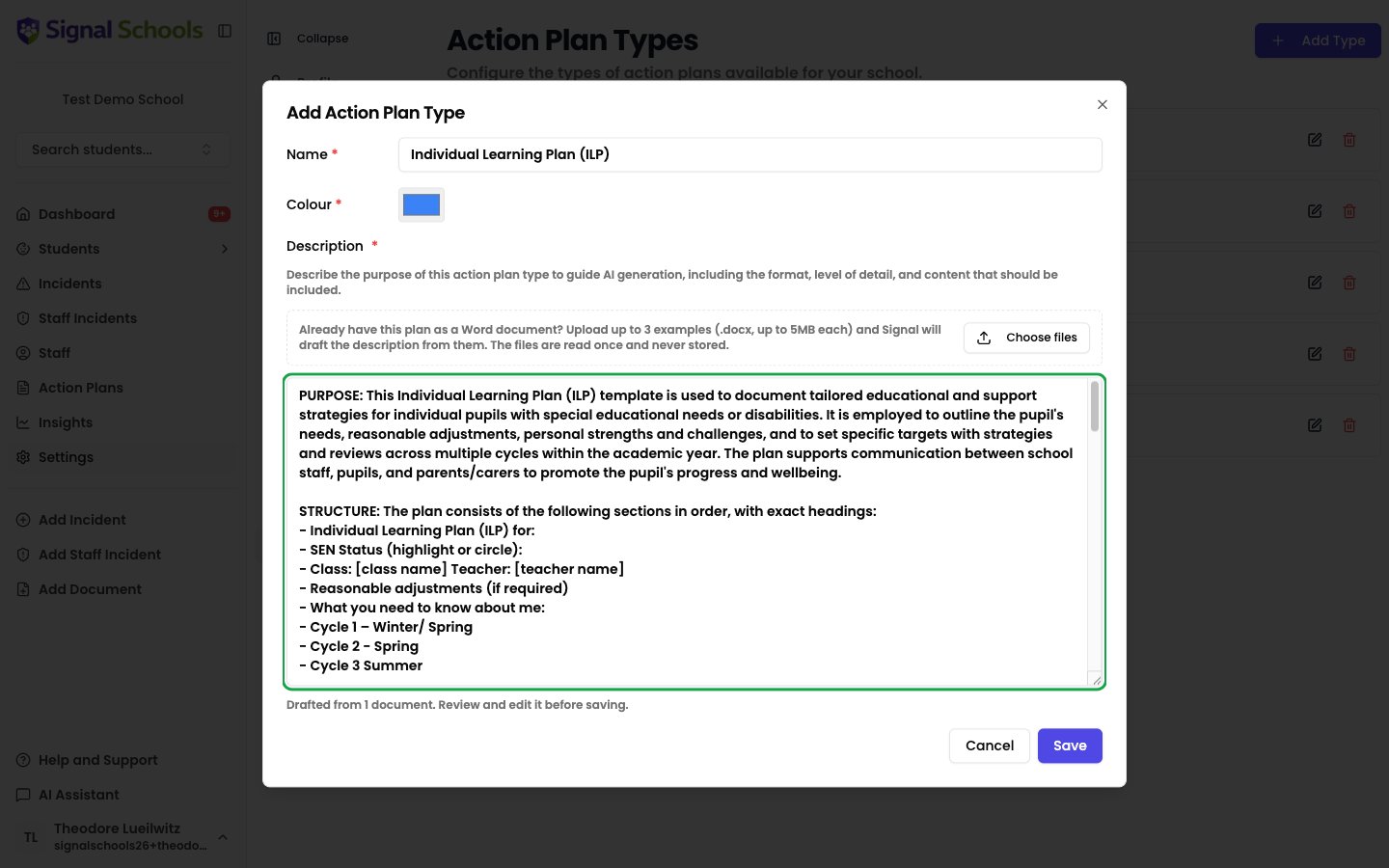
5
Name the type and save
Give the type a Name and pick a Colour, then click Save. The type is available immediately when staff create an action plan.
Your uploaded documents are read once to produce the description and are never stored in Signal. They do not appear in the student’s record, in Documents, or anywhere else.
What Signal leaves out
The description Signal writes is a template specification, not a copy of the plans you uploaded. Signal deliberately strips anything that identifies a real person — pupil and staff names, dates of birth, specific incidents, diagnoses, and family circumstances — and describes the shape of the content instead. Where your plan says “Tom will remain in class for 20 minutes”, the description will say something closer to “one specific, measurable behavioural goal with a timeframe”.Replacing an existing description
You can draft a description for a type that already has one. Signal asks you to confirm first, because the draft replaces whatever is currently in the box. If you want to keep the existing wording, copy it somewhere safe before drafting.Tables in action plans
Many school templates set out targets in a grid — target, provision, success criteria, review date. Signal supports tables in action plan content, so a description that asks for a table will produce one. Tables appear in the plan editor, on the plan itself, and in the PDF download. Keep them to four columns or fewer so they stay readable on a phone and in the exported PDF.Review cycles become monitors
Many templates review progress on a repeating cycle — a termly targets grid with a Red/Amber/Green column, for example. When Signal spots this in the plans you upload, it does not copy the RAG column into the plan as text. It sets up monitors instead. A monitor is a scheduled check-in staff record against over time. Recording progress against a monitor means it shows up in reports and on the student’s record, which a colour typed into a document never does. So a plan generated from that description gets:- One monitor for each term left in the school year, covering that term’s dates
- The monitor’s name in the plan’s progress column, so it is clear where progress is recorded
The number of monitors depends on when you create the plan. A plan created at the start of the year gets three; one created after Christmas gets two. A plan created during the summer holidays covers the year ahead.
Writing a description by hand
You do not have to upload anything. If you would rather write the description yourself, type it straight into the Description field. Write it as instructions to whoever is producing the plan — “Include a section titled Targets and Provision, presented as a table with the columns Target, Provision, Success criteria and Review” — rather than as a general description of the plan’s purpose.Editing and deleting types
You can rename a type, change its colour, or update its description at any time. Changes apply to plans generated from that point on; existing plans keep the content they already have.Learn more
Creating & Managing Action Plans
Create a plan using one of your types, link incidents, and schedule reviews.
Monitors & Check-ins
Set up scheduled check-ins to track progress within an action plan.