
Writing and reading class notes requires the Contributor role or above. You can act on a child’s notes if you are on that child’s class team, or if you are a DSL, Deputy DSL or Owner.
What makes a note different
A note is something to know, not something to do. It never appears in your To Do lane and there is nothing to tick off.- An incident is the record of what happened. A note is an instruction drawn from it.
- A comment is a conversation, visible only to staff who can open that incident. A note is visible to the class team whether or not they can.
- A reminder is a task with a due date and an owner. A note has neither.
Writing a note
There are two ways in, and both create the same thing.From the child’s profile
1
Open the child's profile
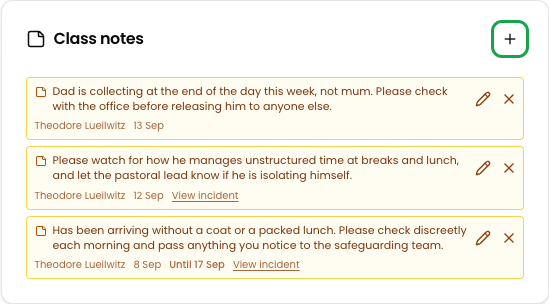
Go to Students, open the child, and stay on the Profile tab. The Class notes card is in the right-hand column.
2
Click the + button
Click + in the card header. The composer opens in place, so you can still read the profile while you write.
3
Write the note
In Note, say what the class team should watch for. The placeholder asks the question directly: “What should the class team watch for?”
4
Set an end date (optional)
Use Show until to set the last day the note is shown. The note is still visible on that day.Leave it blank and the note runs until somebody dismisses it.
5
Add the note
Click Add note. The class team is emailed straight away.
While writing an incident
If the note comes out of something you are already recording, you do not need to leave the incident. Type / in the incident description or a comment, choose Class note, and write the instruction — for example,/note monitor for spare clothes tomorrow. Press Enter and Signal reads the date out of your words, showing it in brackets.
The note is created when you save the incident. If the incident names only one child, the note is attached to them automatically. If it names several, Signal asks “Which child is this note about?” beneath the editor and will not save until you answer.
A note written from an incident carries a View incident link for colleagues who are allowed to open it. Staff who are not see the note without the link.
Where notes appear
The child's profile
Every note ever written about the child, under Class notes — live notes first, then Dismissed and Ended beneath.
Your dashboard
The class notes chip opens all live notes for the classes you teach. Your class band lists the ones for the class you have selected.
The student overview
A child with live notes carries a small amber 1 note chip on their card. Hover to read them, click to act on them.
The class team is emailed when a note is written, and the count appears in the daily digest.
Ending a note
A note stops being shown in one of two ways.- It reaches its end date. The note moves to Ended. To bring it back, edit it and clear or extend the date.
- Somebody dismisses it. The note moves to Dismissed, and anyone who can read it can Restore it.